
Signal Quality Bias Factor Settings
The Signal Quality Bias Factor is a feature for adjusting the unlock and lock distance on the GateKeeper Client software. Add a bias to signal quality to prevent computers from locking while you are working. This setting can be adjusted in the Client or Hub software.
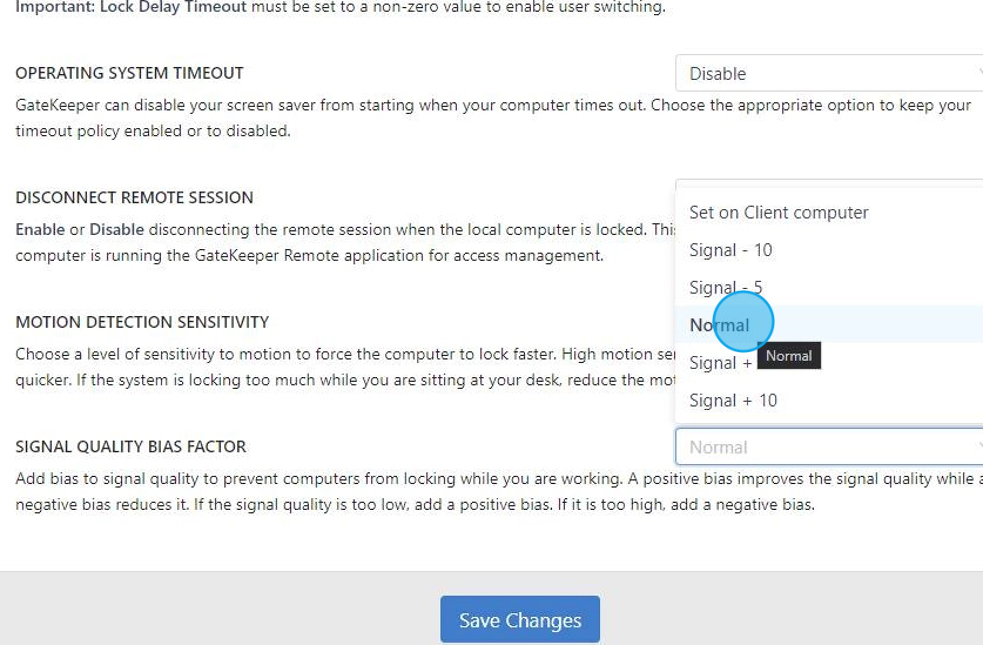
A positive bias improves signal quality, while a negative bias reduces it. If the signal quality is too low, add a positive bias. If it is too high, add a negative bias. So if your computer is locking while you're working, select +10 or +5. If your computer is not locking fast enough, select -10 or -5.
1. Log in to the GateKeeper Hub.

2. Click "Groups & Settings".

3. Click "Manage Settings" and click "Update Settings".

4. Under the Lock Settings, click the drop-down menu from "Signal Quality Bias Factor".

5. Click the Signal Quality.
If your computer is locking while you're working, select +10 or +5. If your computer is not locking fast enough, select -10 or -5.
6. Click "Save Changes".

For any additional questions or concerns regarding faster 2FA, proximity settings, computer locking, password management, or compliance, please contact GateKeeper Enterprise support using the Support Ticket form on https://gkaccess.com/support/ or email support@gkaccess.com.
Comments
0 comments
Please sign in to leave a comment.