
The "Global Authentication Method" setting in GateKeeper's global settings refers to the configuration option that allows administrators to define the default authentication method used for all users on the Windows Lock screen. All other options are available through Sign-in options unless disabled.
The default setting is Bluetooth Tokens. Here is your complete list of setting options:
- Set on Individual Groups: The default options will be set per individual group.
- Bluetooth Tokens: GateKeeper Halberd BLE token and GateKeeper Trident app for Android and iOS are the primary login methods allowing either Touch-to-login or 2FA: GateKeeper token + PIN.
- NFC and RFID Cards: NFC MIFARE cards can be added as the primary login methods allowing either Tap-to-login or 2FA: NFC/RFID Tap + PIN.
- Email & One-Time-Passcode: GateKeeper users can use their email address and an OTP code from their authenticator app (Google Authenticator, Microsoft Authenticator, etc.) as the primary login method.
Important: This authentication method can be overridden on a per-group basis.
How to configure Authentication Methods for specific groups.
1. Log in to the GateKeeper Hub.

2. Click "Groups & Settings".

3. Click "Global Settings" from the top right side.

4. Click the drop-down menu on "GLOBAL AUTHENTICATION METHOD" then select "Set on Individual Groups".
After that, click "Save Changes" at the bottom.

5. Now, find the group that you want to change the Authentication method for.
Click "Settings", then click "Update Settings".

6. Click "ADVANCED SETTINGS".

7. Click the drop-down menu from "DEFAULT AUTHENTICATOR FOR LOGIN", then select the authenticator.
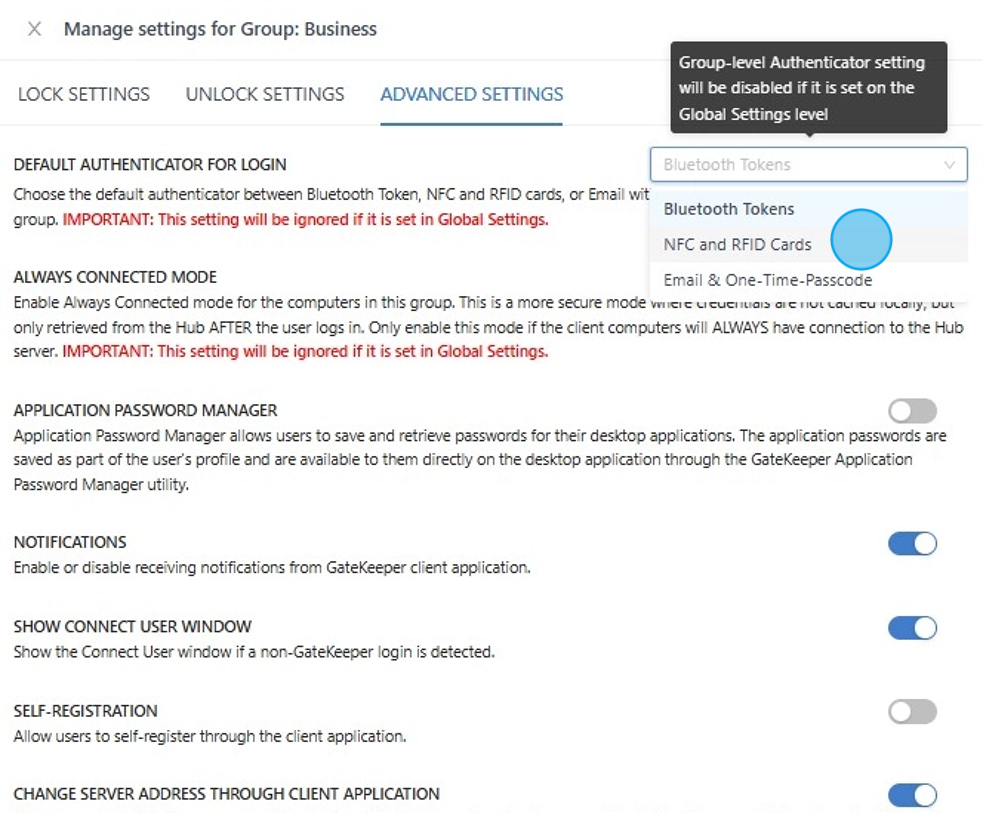
8. After that, click "Save Changes" at the bottom.
You're all set!
The update will take effect in approximately 30–60 seconds, and any computer in this group will update its login options based on the settings you just configured.

If you have any further questions, IT problems that need to be addressed, or compliance problems that need to be solved, please visit www.gkaccess.com or contact us at info@gkaccess.com or (240) 547-5446 to see how GateKeeper Enterprise can automate digital security for your end-users and admins.
Comments
0 comments
Please sign in to leave a comment.