
How to add a new Hub admin user.
The following step below walk you through adding a new GateKeeper Hub Admin and assigning them a role.
1. Using your GateKeeper Hub URL, log into your Hub instance.

2. Click "Administration."

3. Click "Team."

4. Click "Add Team Members."

5. Add the Hub Admin's Name, email address, and mobile phone number. You will need to create a username for the admin.

6. Under Role, click "Select" to choose the Hub admin role.

7. Choose a Role for the Hub Admin. Hub Admin Roles explained.

8. Click "Set Role."

9. At the bottom of the side panel, Click the "Next" button.

10. Verify the information you have entered is accurate.

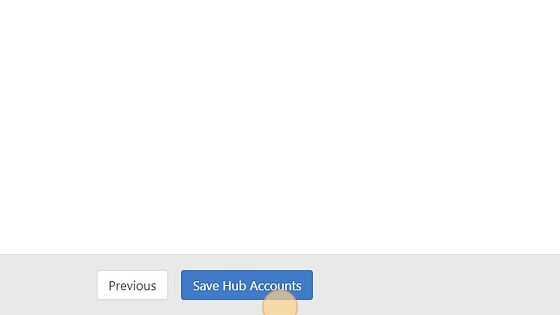
11. At the bottom of the side panel, click the "Save Hub Accounts" button. The Hub admin will receive an email with login instructions, such as creating their own Hub password. Done.
For any additional questions or concerns regarding proximity settings, computer locking, credential management, or compliance, please contact GateKeeper Enterprise support using the Support Ticket form on https://gkaccess.com/support/ or email support@gkaccess.com.

------------------------------
New admin; Edit roles; Manage roles; Manage admins; Hub admin access; Add new admin user;
Comments
0 comments
Please sign in to leave a comment.