
The Operating System Timeout setting allows you to disable any screen saver timeout set on your computer. By disabling Operating System Timeout, the GateKeeper software will attempt to disable the screen saver timeout for the Windows operating system.
The screen saver will be prevented from starting after a period of inactivity.
*This setting is only available on the enterprise version of the GateKeeper Client application and can be controlled from the GateKeeper Hub server.
How to change the Operating System Timeout setting through the GateKeeper Hub
How to change the Operating System Timeout setting through the GateKeeper Client App.
Please ensure you have permission to update this setting. If the option is grayed out, please contact your GateKeeper Hub administrator for assistance updating this setting.
1. Open your GateKeeper Client application on your PC by pressing the Windows key on your keyboard and start typing "GateKeeper."
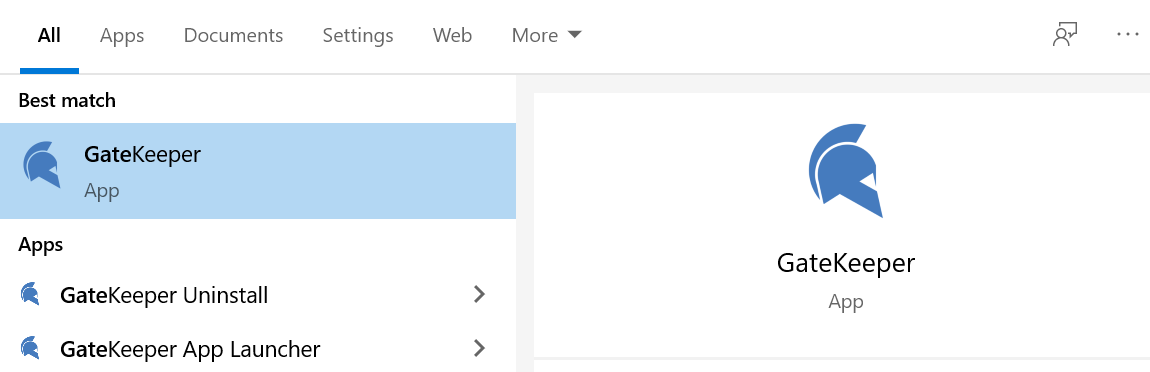
2. Click Settings in the icon.
3. Under the Lock Settings tab, scroll down until you see Operating System Timeout and enable or disable the feature. Done!
For any additional questions or concerns regarding proximity settings, computer locking, credential management, or compliance, please contact GateKeeper Enterprise support using the Support Ticket form on https://gkaccess.com/support/ or email support@gkaccess.com.

---------------------------------------------------------------------------------------------------------------------------------------
GateKeeper OS timeout; timed out; disable screensavers, disable screen savers for workstations; GateKeeper screen lock; lock screen automatically with GateKeeper proximity; What is the "Operating System Timeout" setting in GateKeeper?;
Comments
0 comments
Article is closed for comments.