
If a new firmware is released for the GateKeeper Halberd token key fob, it can be updated through the client application for retail users. For enterprise users, make sure to enable firmware update through the Hub. Firmware update can be enabled in the Settings page for the Organization Group.
- Please ensure that the GateKeeper USB proximity sensor (Bluetooth receiver) is attached to your computer before updating the firmware on your Halberd token.
- Connect to your Halberd token key fob by either logging on to your computer using it or by clicking Connect Token on the GateKeeper Client Dashboard.
- Place the Halberd token close to the USB proximity sensor.
-
Open your GateKeeper Client application on your PC by pressing the Windows key on your keyboard and start typing "GateKeeper".
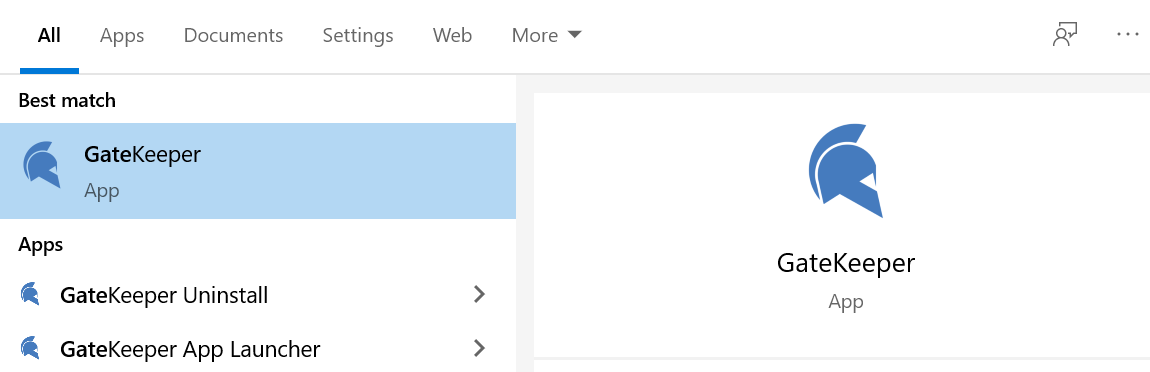
- Click Settings in the lower left.

-
Click Advanced Settings.

-
Go to Update Firmware.

It will take about 60 to 90 seconds to update the firmware. A red light will activate on the token while the firmware is being updated. Once the firmware is updated, the application will show a message indicating the firmware update was successful and the token will remain connected to the computer.
If the firmware does not update successfully, please follow the following steps.
- Remove the battery from the GateKeeper Halberd token
- Wait for 2 minutes
- Re-insert the battery into the token
- Connect the token to the client application by clicking Connect Token
- Redo the firmware update
If you are unable to reconnect the token, or the firmware update fails again, please contact GateKeeper Enterprise support using the Support Ticket form on https://gkaccess.com/support/ or email support@gkaccess.com.

-------------------------------------------------------------------------------------------------------------------------------------------
GateKeeper update firmware; upgrade firmware; software for key fob; firmware updater; automatic firmware update;
Comments
0 comments
Please sign in to leave a comment.