
Request and email from Admin
-
Log in to the GateKeeper Hub using your GateKeeper Hub admin.
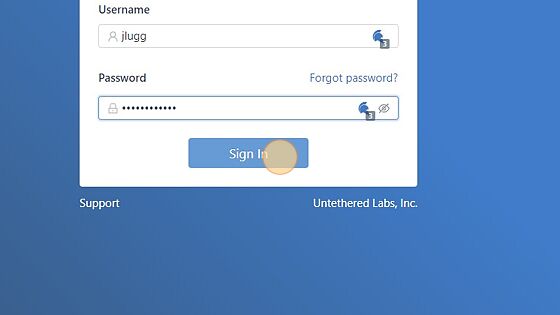
- Click "Users Management", then click "GateKeeper Users".
3. In the search field, type the name of the user and click Enter.

4. Click "Profile".

5. Click "Send OTP Information to User".

6. An email has now been sent to the user to set up their OTP code with their authenticator.

7. The user will get an email with the QR code. Download the Authenticator app on the phone (Google Authenticator or Microsoft Authenticator).
8. Scan the QR code provided in the email, done!
Setting up OTP and Email login through the GateKeeper Client app.
1. Log into the computer using your GateKeeper token and open the GateKeeper Client Dashboard app.
2. Click "Manage Profile".

3. Click "Setup OTP Backup".
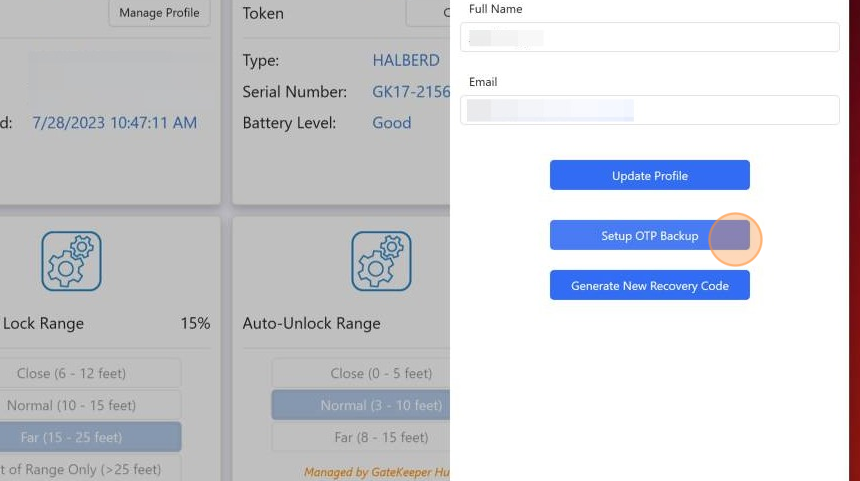
4. Open your authenticator app, Google Authenticator is recommended, scan the QR code, then enter the code shown on the app and click "Verify and Save". Done!

For any additional questions or concerns regarding faster 2FA, proximity settings, computer locking, password management, or compliance, please contact GateKeeper Enterprise support using the Support Ticket form on https://gkaccess.com/support/ or email support@gkaccess.com.
Comments
0 comments
Article is closed for comments.