
Duo Security and GateKeeper Proximity.
GateKeeper Proximity can be used alongside Duo Security under the right circumstances. GateKeeper and Duo have some overlapping functions and others that are unique to each.
Since only one authentication service can be used for logging in, either GateKeeper or Duo must be used, but not both.
If you wish to use GateKeeper Proximity's other features such as automatic computer lock, centralized password management, automatic web 2FA OTP, and automated real-time auditing, then users can login to their computer using Duo and then connect to GateKeeper for automatic locking and password management.
Scenario 1: Use GateKeeper 2FA for Computer Login
If you want to use GateKeeper to login to your computer, you will have to first uninstall Duo authentication from your computer.
GateKeeper and Duo are both methods for logging on to a computer, and if Duo is installed, it prevents GateKeeper from presenting its login tile on the lock screen. So, if you would like to use GateKeeper to login to your computer using proximity authentication, Duo login option must be uninstalled.
To uninstall Duo Authentication for Windows Logon, please see the following articles.
https://help.duo.com/s/article/2272?language=en_US
https://help.duo.com/s/article/1088?language=en_US
Scenario 2: Use Duo for Computer Login
If you would like to use Duo for Windows login, but would like to use GateKeeper for automatic proximity lock, web and desktop password managers, as well as advanced auditing and reporting, simply login to your computer using Duo as you normally would, then connect your token to your computer AFTER you have logged in using Duo.
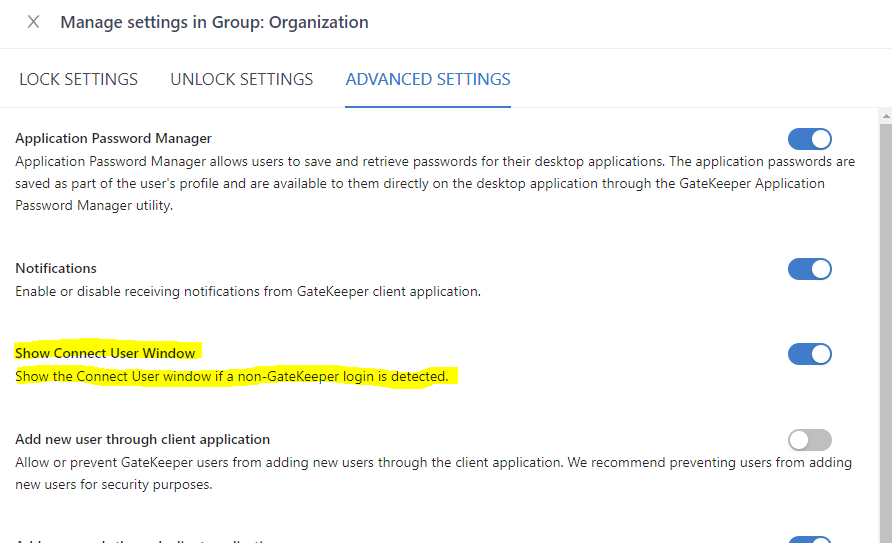
GateKeeper software will detect a "non-GateKeeper login" event and prompt the user to connect their GateKeeper token to the Windows session. This feature needs to be first enabled on the GateKeeper Hub.
- Log on to GateKeeper Hub.
- Navigate to Group Settings.
- Click on Manage Settings for the group of computers you want to update settings for.
- Go to Advanced Settings.
- Turn on Show Connect User Window option.
- Save the settings.
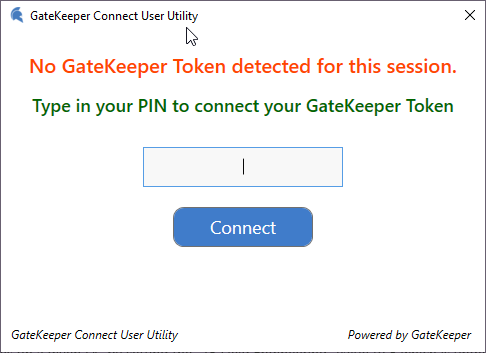
Now, the GateKeeper Connect User Utility will show up when the user logs in with Duo.
Type in your PIN for GateKeeper to connect your token to the current Windows session you logged into with Duo. This allows the GateKeeper software to grant the user access to their web and other passwords they have stored in their GateKeeper profile. It will also allow the software to detect the proximity of the GateKeeper token in real time and automatically lock your computer when you walk away.
For any additional questions or concerns regarding security, proximity settings, computer locking, credential management, or compliance, please contact GateKeeper Enterprise support using the Support Ticket form on https://gkaccess.com/support/ or email support@gkaccess.com.

-------------------------------------------------------------------------------------------------------------------------
GateKeeper and Duo; Duo with GateKeeper; GateKeeper duo; does duo work with GateKeeper?; If I have duo, will Gatekeeper work?; If I have GateKeeper, will duo authentication work?; preferred provider; preferred authentication provider; does GateKeeper work with duo security, cisco?; my company just rolled out duo; our company just rolled out duo to all computers; duo and gatekeeper; is duo compatible with gatekeeper proximity?; is gatekeeper compatible with duo?; can I use duo and gatekeeper at the same time?; can i use gatekeeper and duo at the same time?; is duo the same as gatekeeper?; is gatekeeper the same as duo?;
Comments
0 comments
Please sign in to leave a comment.