
Adjust lock/unlock range by adding/removing Signal Quality Bias.
The Signal Quality Bias Factor is an advanced feature for adjusting the unlock and lock distance on the GateKeeper client software. Add a bias to signal quality to prevent computers from locking while you are working. This setting can be adjusted in the Client or Hub software.
A positive bias improves signal quality, while a negative bias reduces it. If the signal quality is too low, add a positive bias. If it is too high, add a negative bias.
Directions to access the Signal Quality Bias Factor feature option:
1. Open your GateKeeper Client application.
2. Click Settings.
3. Click Lock Settings.
4. Scroll down and click Signal Quality Bias Factor.
5. Add a bias to signal quality to prevent computers from locking while you are working. This setting can be adjusted in the Client or Hub software.
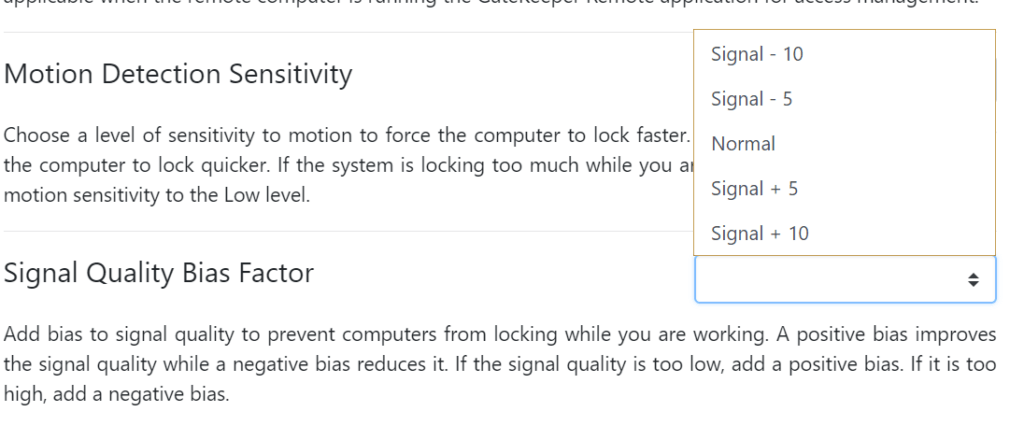
A positive bias improves signal quality, while a negative bias reduces it. If the signal quality is too low, add a positive bias. If it is too high, add a negative bias. So if your computer is locking while you're working, select +10 or +5. If your computer is not locking fast enough, select -10 or -5.
For any additional questions or concerns regarding proximity login, computer locking, credential management, or compliance, please contact GateKeeper Enterprise support using the Support Ticket form on https://gkaccess.com/support/ or email support@gkaccess.com.
--------------------------------------------------------------------------------------------------------------------
computer will not unlock, why does my computer lock, how do I stop the computer from lock, unintended locking, unintended locks;
Comments
0 comments
Please sign in to leave a comment.