
How to change the Lock Range through the GateKeeper Hub
Lock Range settings refer to a feature in GateKeeper that allows users to define a specific range or distance with their GateKeeper token that will automatically lock their PC.
The following instructions show you how to change the Lock Range for a group of computers through the GateKepeer Hub. Please see click here to learn more about the Lock Range setting. The following articles provide tips for help adjusting the lock range to meet your preferences.
How to make the computer unlock faster.
How to make the computer unlock only when I'm very close.
How to make the computer lock faster.
How to make the computer lock when I'm farther away.
If you want to lock your PC faster, set the range to Close (6-12 feet).
If you don't want to lock your PC faster, set the range to Out of Range Only (>25 feet).
1. Navigate to GateKeeper Hub URL and Log in

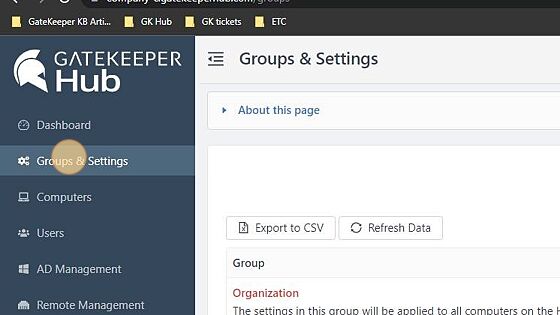
2. Click "Groups & Settings"
3. Click "Manage Settings" under Action

4. Click "Update Settings"

5. Under Lock Settings, find Lock Range and click drop-down menu.

6. Click and set your range

7. Click "Save Changes".

For any additional questions or concerns regarding faster 2FA, proximity settings, computer locking, password management, or compliance, please contact GateKeeper Enterprise support using the Support Ticket form on https://gkaccess.com/support/ or email support@gkaccess.com.
Comments
0 comments
Please sign in to leave a comment.