
When the Hub Administrator registers users in the GateKeeper Hub, users will receive an email notification containing token information, a PIN, and a QR code. Users can scan the QR code with an authenticator app on their phone to register for an OTP backup login.
From the GateKeeper Hub
1. Log in to the GateKeeper Hub.

2. Click the "Users" tab from the left menu.

3. Find the User, then click "Profile" under the Actions column.
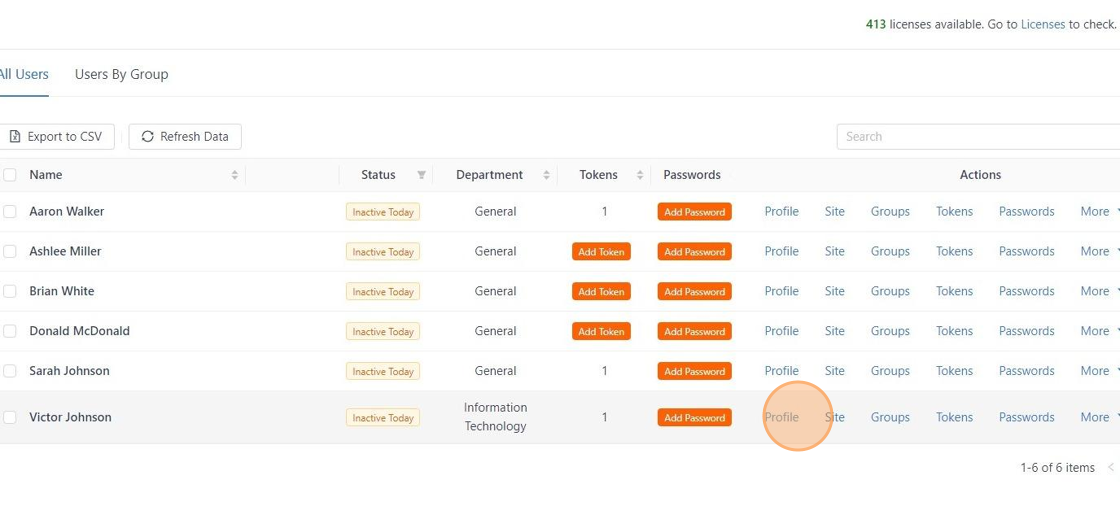
4. Click "Send OTP Information to User".

5. Email sent to the user.

From the GateKeeper Client application
1. Unlock the computer with GateKeeper, and open the GateKeeper Client application. Click "Manage Profile" from the GateKeeper Client dashboard.
2. From the Manage Profile tab, click "Setup OTP Backup".
3. Scan the QR code with the authenticator app on your phone. Type the OTP code in the OTP Code section, then click "Verify and Save".
Please see all the available authenticator apps compatible with GateKeeper: Which 2FA OTP authenticators is GateKeeper compatible with?
How to Log in to your computer with OTP
If a user does not have their GateKeeper token, they can click the “Sign-in Options” link at the bottom of the PIN entry box on the computer’s login screen and then select: "One-Time-Passcode Login". The user will be asked to enter their email address, followed by the OTP generated by their authenticator app (such as Google Authenticator). Once the OTP is verified, the user will be logged in.
1. Click the Sign-in Options at the bottom of the computer login screen.
2. Select "One-Time-Passcode Login".
3. Enter the email address you submitted during OTP setup.
4. Enter the OTP Code shown on your authenticator.
Done! You're logged in.
For any additional questions or concerns regarding proximity 2FA OTP, computer locking, credential management, or compliance, please contact GateKeeper Enterprise support using the Support Ticket form at https://gkaccess.com/support/ or email support@gkaccess.com.
Comments
0 comments
Please sign in to leave a comment.