
Automatic OTP Login with GateKeeper Proximity explained.
Automatic OTP (or "Auto-OTP") is a method of authenticating onto a system using an automated version of one-time passwords (OTPs). Unlike traditional 2FA OTP methods that requires a user to wait for a code and then type it in within 30 seconds, an automatic OTP does not require the user to type in the actual OTP code.
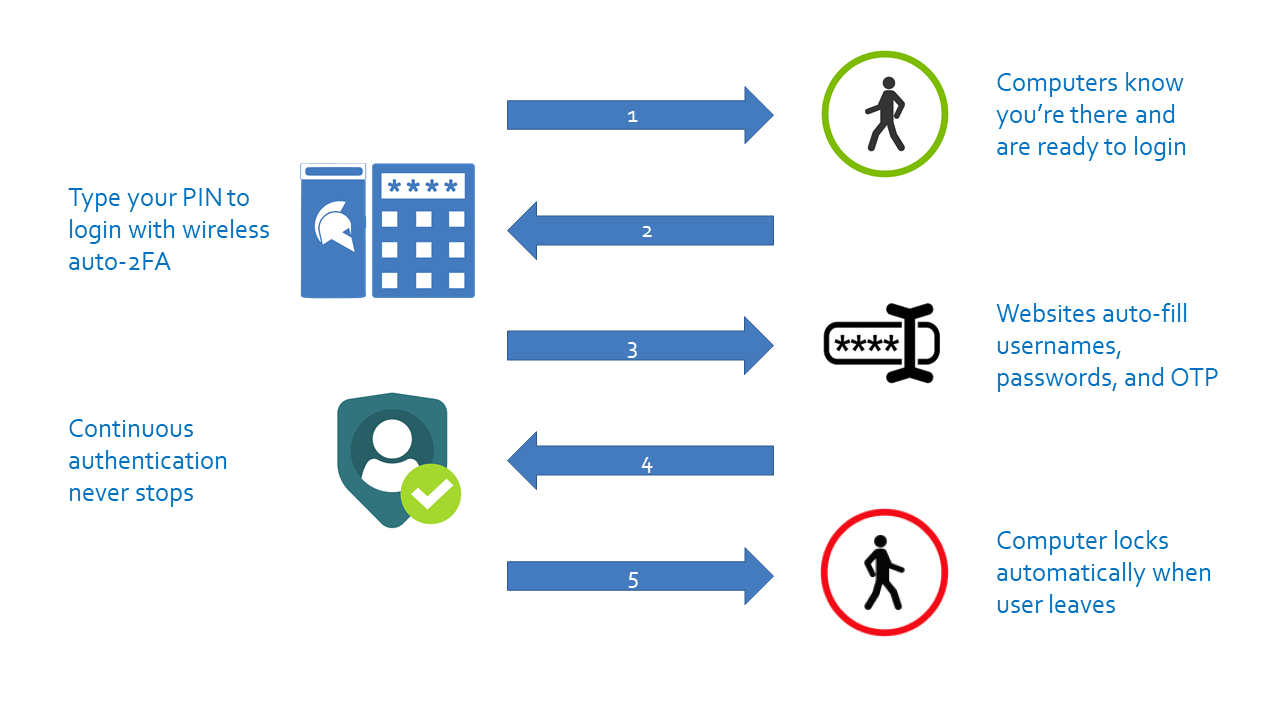
The GateKeeper Proximity 2FA solution sports a powerful, auto-OTP login solution for websites based on proximity. Instead of waiting for and typing your OTP on each website, GateKeeper automatically fills in your unique 2FA OTP code for each individual website, securely for the user, as long as your proximity token is with you (something you have). No more typing one-time passwords on websites to login means no chance of mistyping. There's no risk of time running out before the temporary code is gone. Just like your car key gets you into your car, the proximity token will get you into your PC, Mac, websites, and desktop applications through automation.
The proximity token will send wireless signals and the system will constantly challenge for the user's proximity token's presence to verify the user. Automating steps in the authentication process is key to reducing user errors and closing larger gaps in the security process. The automatic OTP mechanism is superior for security since there is no reliance on the user's part. Even "one-tap" OTP verifications require the user to pull out their phone, unlock their phone, open the application, then click the "one-tap" - still too many preceding steps required to perform a one-tap login.
Once you are on the website for which you want to enable 2FA, you will see a QR code or Secret displayed on it. You will need this QR code/secret to add a OTP to your GateKeeper user profile.
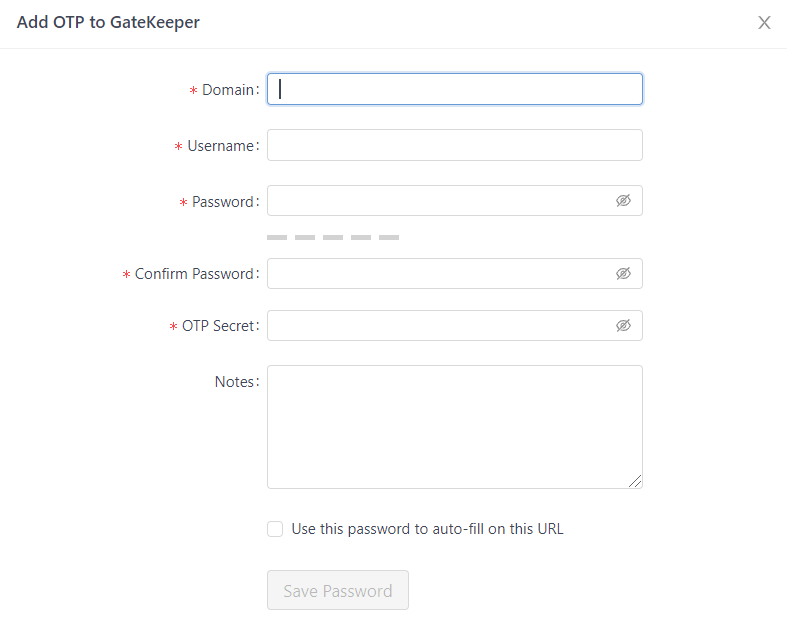
- Open the GateKeeper Password Manager extension in your browser.
- Click + Add Password.
- Fill in the web account details (website, username, password).
- Copy the secret from the website's 2-FA settings page and paste it directly into the OTP field.
- Once all the fields are filled, click Save Password.
The next time the user logs in to the website, the OTP will automatically fill into the fields. You can also see it by clicking the password in the GateKeeper Proximity Password Manager Chrome extension. Depending on the website, some may not allow auto-fill functions and will require the user to copy and paste the TOTP into the required field.
Video of how auto-OTP works on GateKeeper Proximity 2FA below:
For any additional questions or concerns regarding proximity settings, computer locking, credential management, or compliance, please contact GateKeeper Enterprise support using the Support Ticket form on https://gkaccess.com/support/ or email support@gkaccess.com.

---------------------------------------------
Custom otp; auto otp; faster otp; totp; faster totp; automatic totp; automated totp; wireless totp; Auto-OTP solution; how to automatically type OTP; how to auto-fill OTP code; how to automate OTP code; avoid typing OTP code; how to automatically fill in OTP code;
Comments
1 comment
100000
Please sign in to leave a comment.