
How to Use the Offline License Activator and License Validator.
Offline license validation is used when the GateKeeper Hub machine does not have internet access. The Offline License Activator in GateKeeper Hub Manager generates a license request file. This file is moved to an internet-enabled computer and validated using the Offline License Validator. After validation, a final result file is generated and moved back to the Hub machine. Upload this file in GateKeeper Hub Manager to complete the license activation process securely.
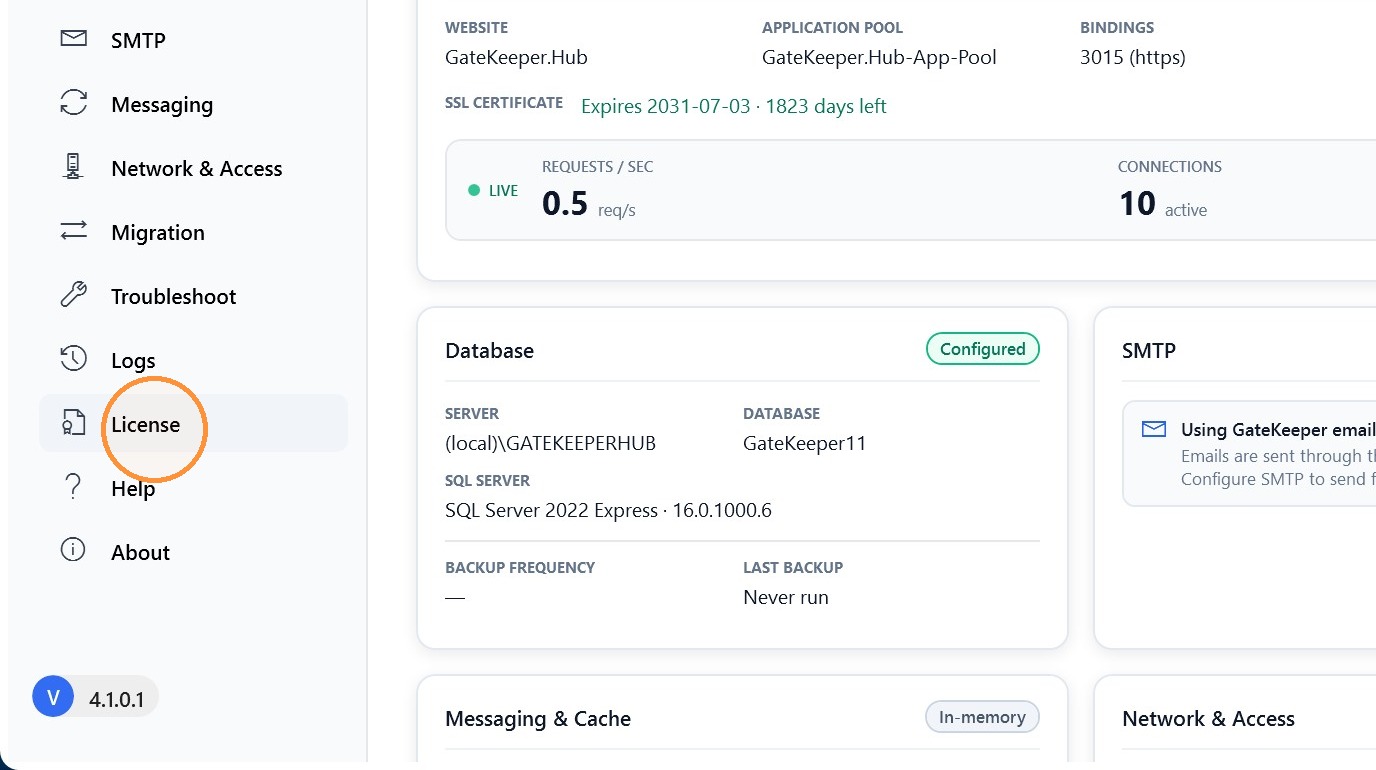
1. Open GateKeeper Hub Manager and click License.
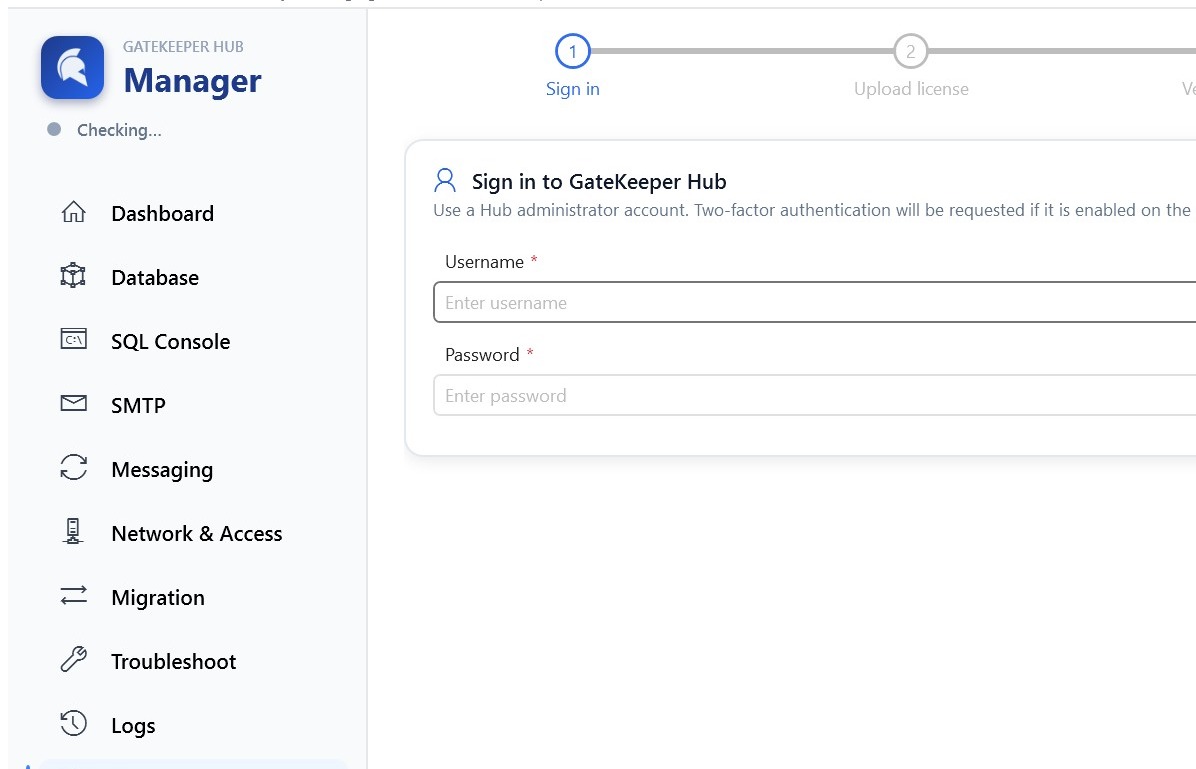
2. Type your Hub Admin credentials.
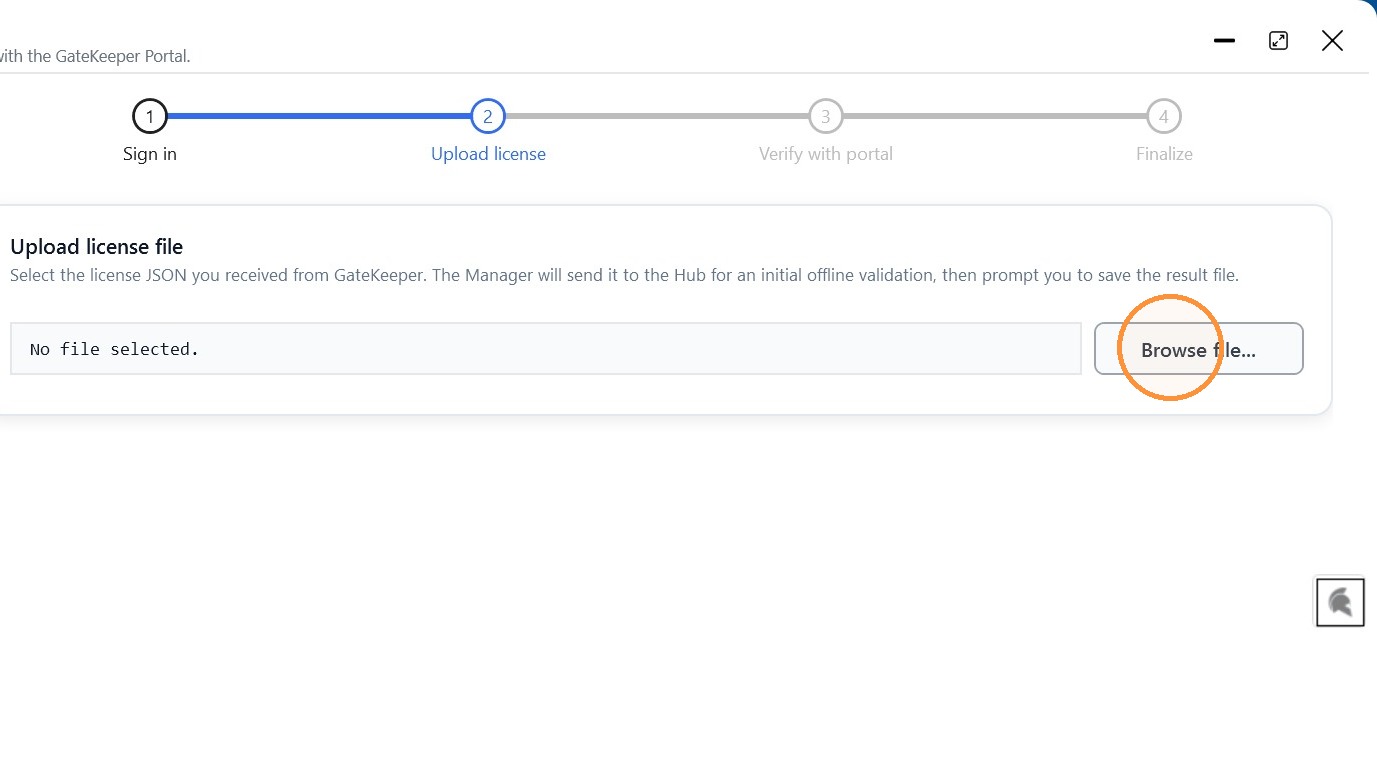
3. Click Browse file. Select the license JSON file, then click Upload. After uploading, click Validate.
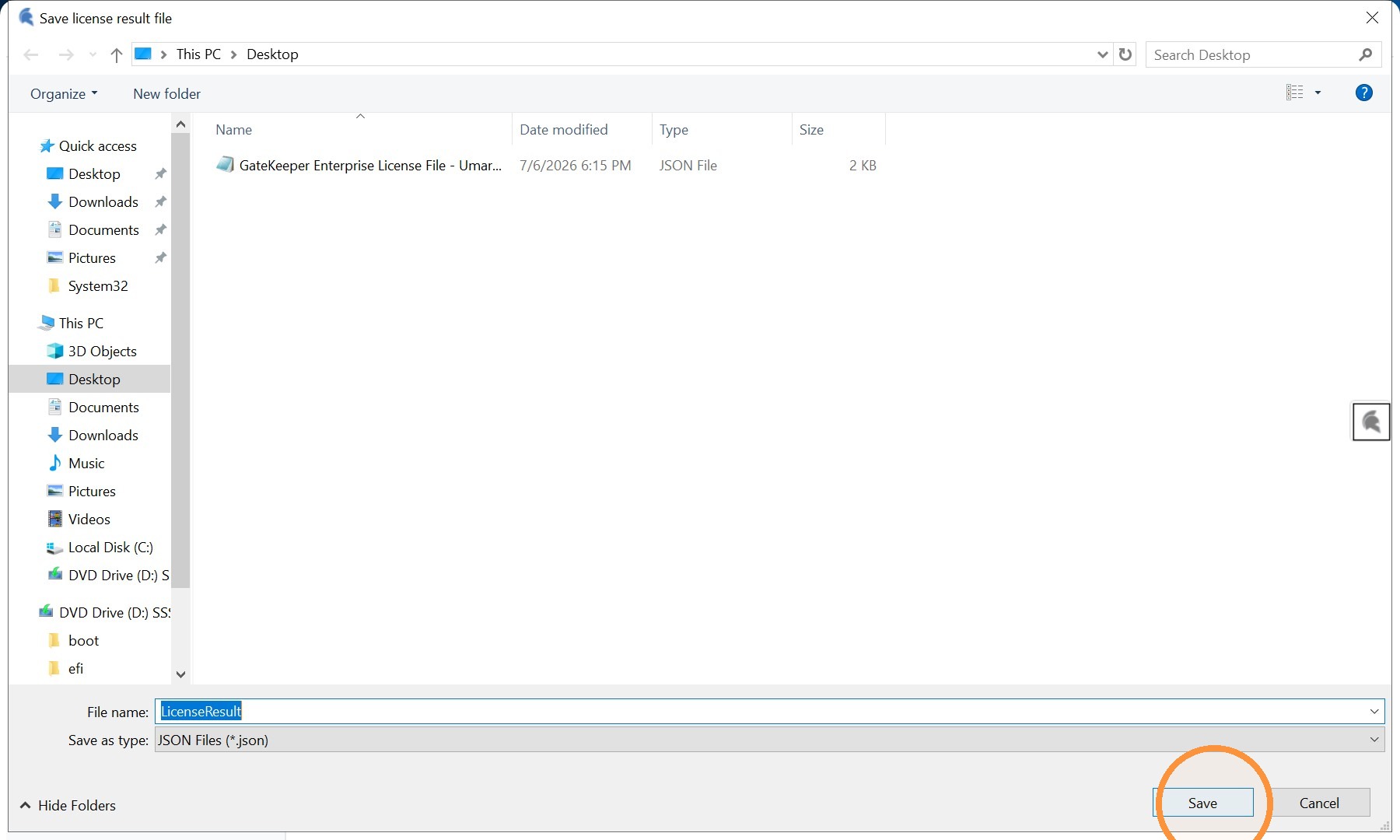
4. Click Save to download the generated license request file. Move this file to a computer with an active internet connection to validate.
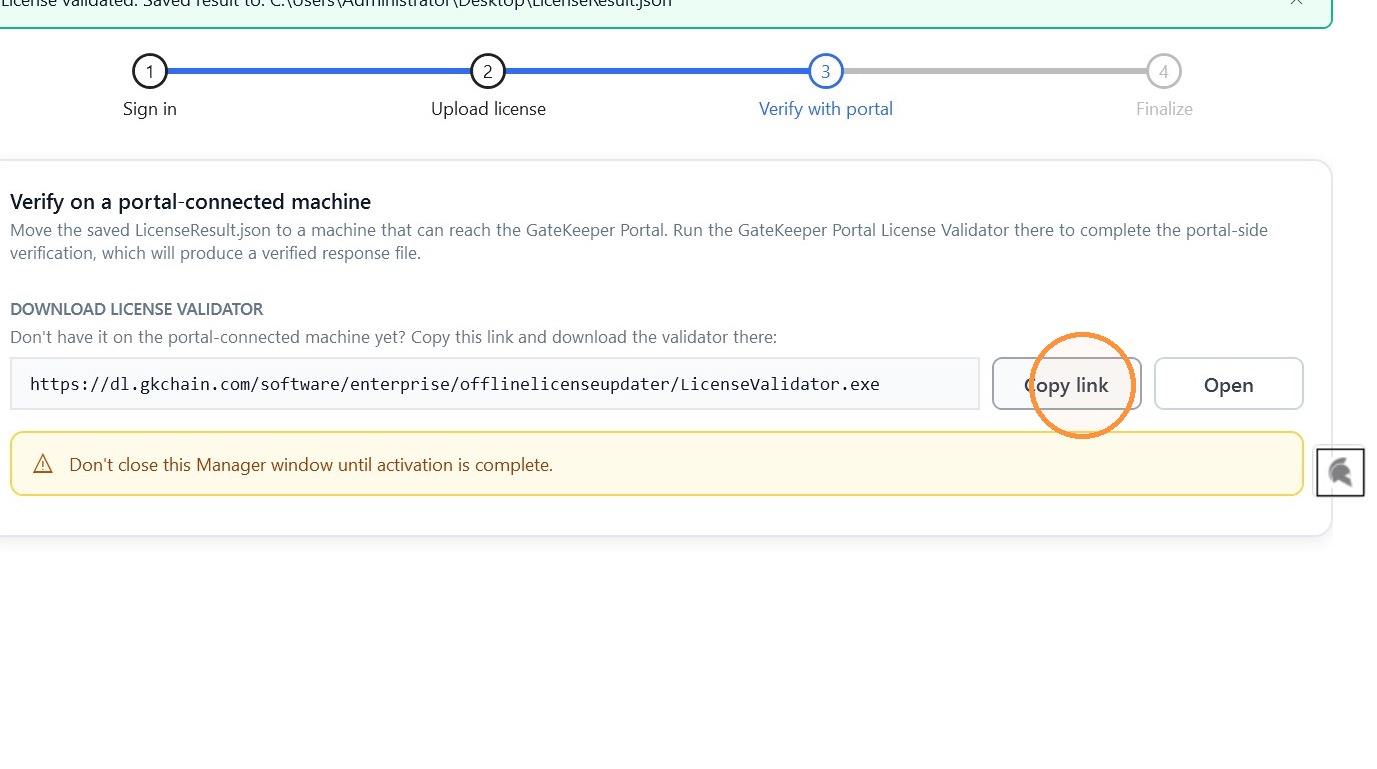
5. Click Copy Link, then download the Offline License Validator application.
Open the link on a computer with an active internet connection and download the application.
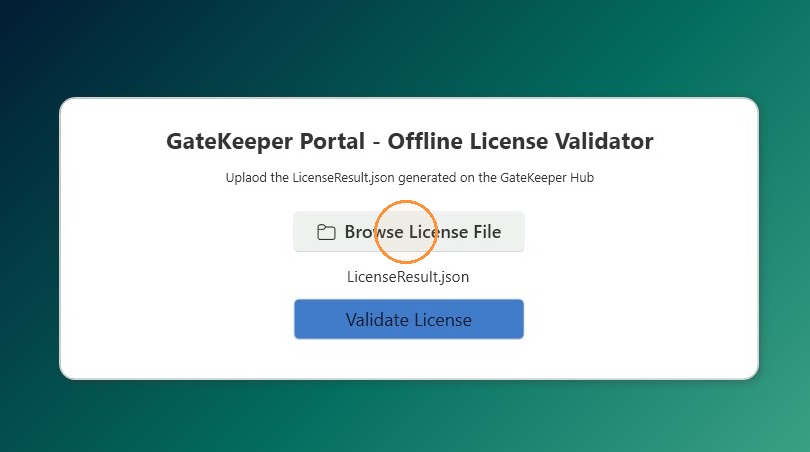
6. Open the Offline License Validator application and click Browse License File. Select the license request file that was moved from the GateKeeper Hub machine, then click Validate.
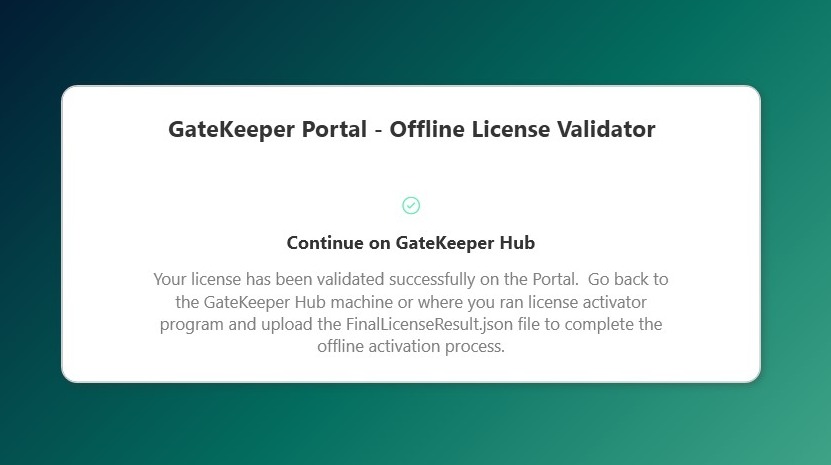
7. After validation is completed, a final result file will be generated.
Move this file back to the GateKeeper Hub machine where GateKeeper Hub Manager is opened.
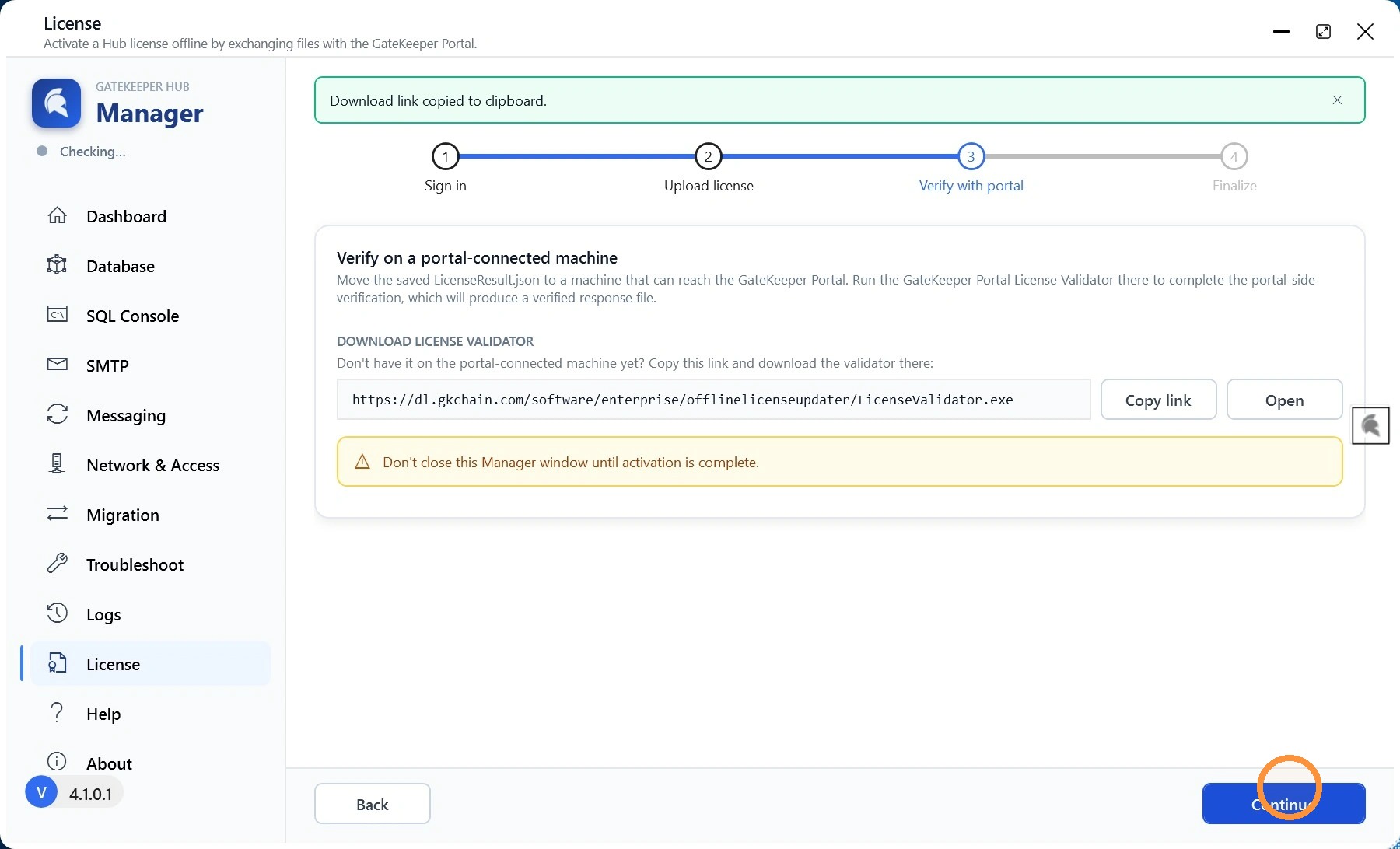
8. Click Continue.
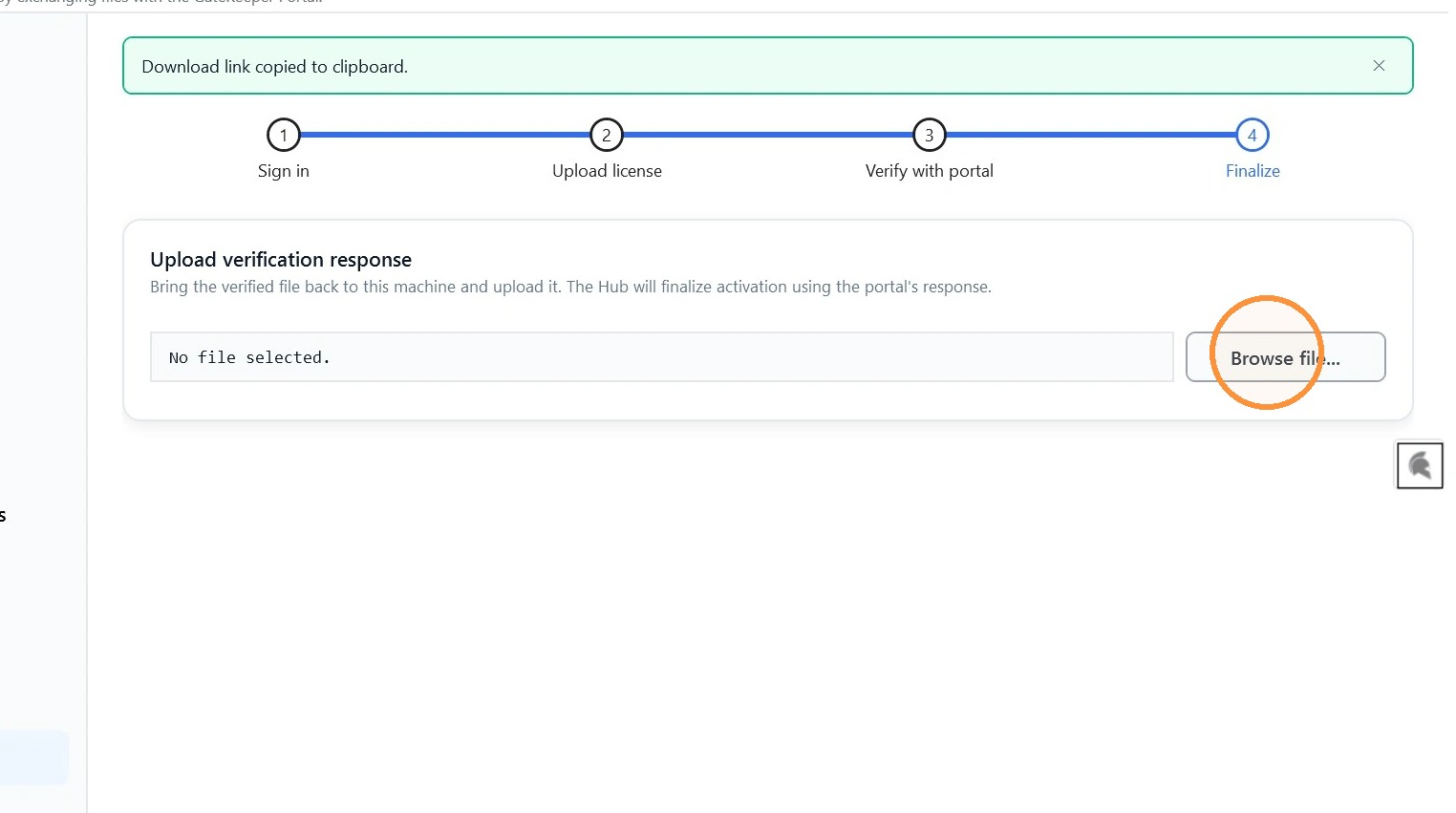
9. Click Browse file. Select the final result file generated by the Offline License Validator, then click Upload and Finish.
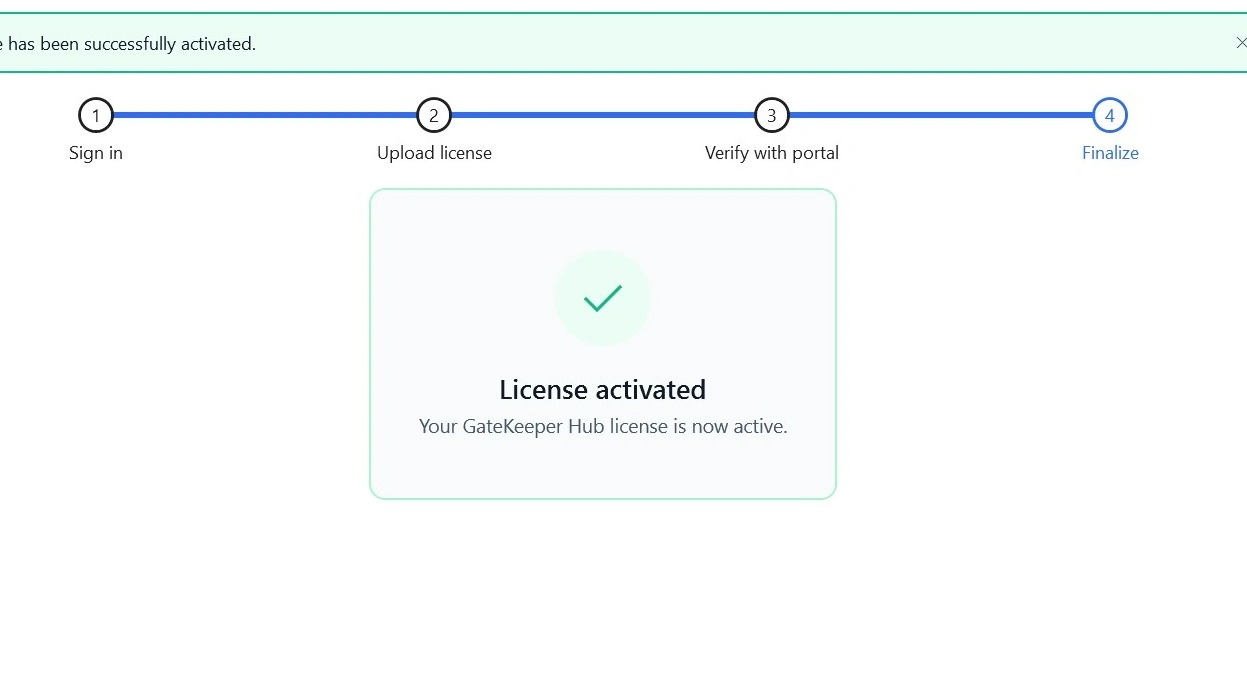
10. License is successfully activated.
Confirm it from your Gatekeeper Hub.
For any additional questions or concerns regarding faster 2FA, proximity settings, computer locking, password management, or compliance, please contact GateKeeper Enterprise support using the Support Ticket form on https://gkaccess.com/support/ or email support@gkaccess.com.
Comments
0 comments
Article is closed for comments.