
Change Lock Settings from the Hub.
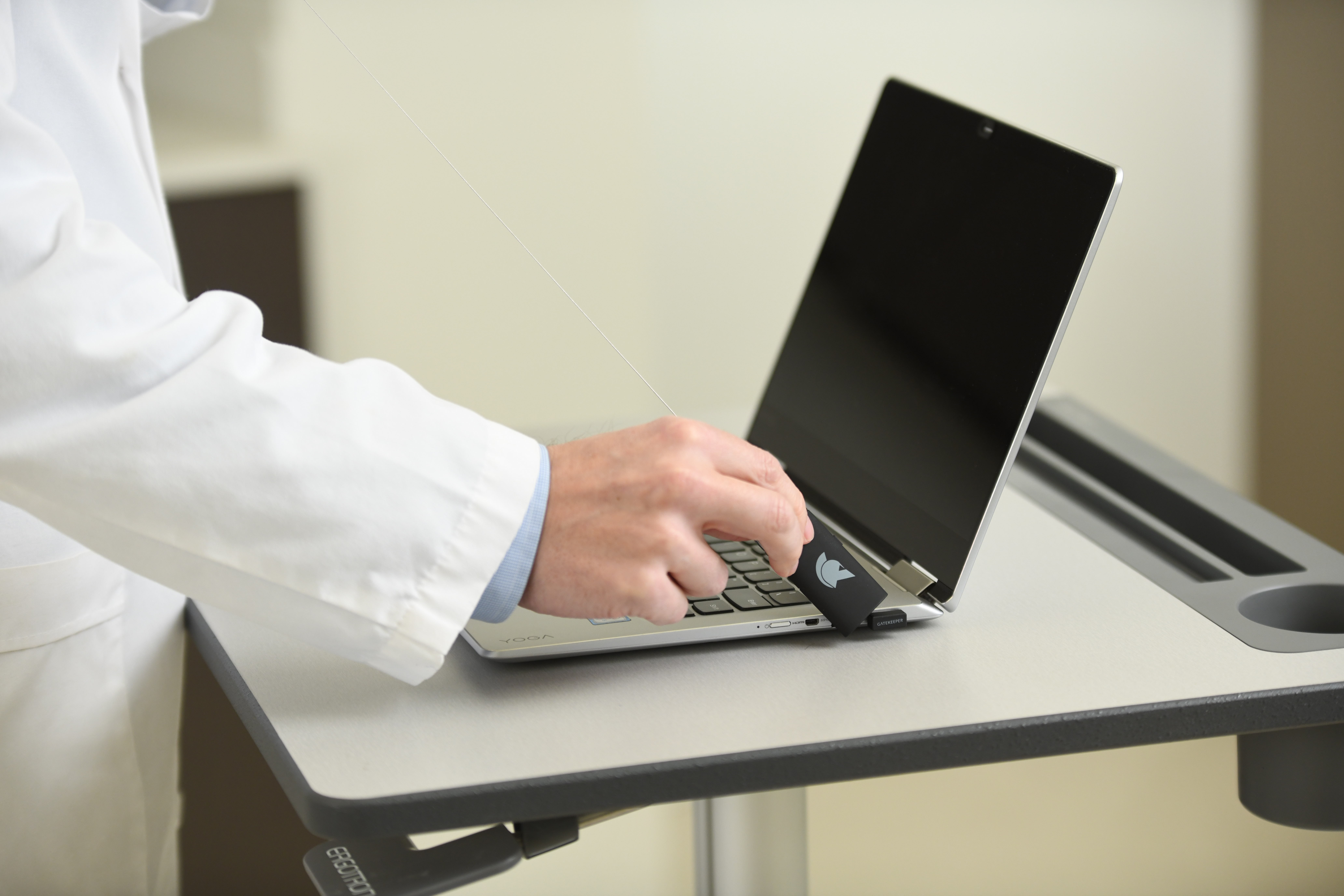
GateKeeper™ Proximity locks in one of two ways: when the user leaves the area of the computer (proximity) or when the user clicks the lock button on the side of the token (button lock). Admins can control what happens when GateKeeper locks. All computers in the same Group will be subject to the same configurations for lock setting.
1) Login to your GateKeeper Hub.
2) Click on Groups & Settings on the left side.
3) Locate the Group you want to make setting changes and click "Manage Settings > Update Settings" to the right of the Group's name.
4) Now you can edit Lock settings for every user and computer in this Group. Done!
LOCK SETTINGS
Below are the options for each setting, along with their explanations for the Proximity Lock Method and Button Lock Method.
|
Set on Client computer: |
Allows end-users to choose the settings on the Client application on their computers. |
|
Lock Workstation: |
Auto-locks the computer. Leaves the current session active and available for any user to log in. |
|
Disconnect Session: |
Locks the computer and enables switching between local or AD user accounts on Windows 7 and Mac (OS 10.13 and 10.14) computers. |
|
Transparent Screen Lock |
Keeps the computer visually accessible but securely locked. |
|
Logout: |
Logs the user out of the computer. |
|
Disable: |
Turns off the feature. Not recommended. |
Inactivity Lock Method: will lock the computer if the user is inactive (no keyboard or mouse activity) for the specified time. Use Lock Workstation if you are the only user or Disconnect Session (Switch User) if multiple people use this computer. The user has the following Lock options available in the drop-down menu. Note 1: For macOS, Lock Workstation and Logout options are not supported. Note 2: For Windows 7, it is recommended to use Disconnect Session instead of Lock Workstation.
- Set on Client computer
- Lock Workstation
- Disconnect Session (Switch User)
- Transparent Lockscreen Lock
- Logout
- Disabled
Token Out-of-Range Timeout: feature allows you to set a timer for how long the computer will remain unlocked if suddenly the software receives no data from the token. Sudden signal loss can happen if a user places their hand over the token or buries it in their pocket. This feature is set in 15-second increments.
- 15 Sec
- 30 Sec
- 45 Sec
- 60 Sec
Lock Range: feature in GateKeeper that allows users to define a specific range or distance with their GateKeeper token that will automatically lock their PC.
- Close (6-12 feet)
- Normal (10-15 feet)
- Far (15-25 feet)
- Out of Range Only (>25 feet)
- Set on Client computer
Lock Delay: delays locking the computer after a lock decision has been made for this time period. Choose a value for this delay if you want to prevent the computer from locking immediately when you walk away. Important: This lock delay will only apply when the computer is locked due to proximity.
- Set on Client computer
- 0 Sec
- 15 Sec
- 30 Sec
- 45 Sec
- 60 Sec
Change User Without Locking the Computer: Enable this setting to show a screen with nearby users when the current user has moved away from the computer. A new GateKeeper User can be chosen to continue the session without locking the computer. Use this option if you want to continue the same Windows session with a different GateKeeper User after the current user moves out of range.
- Set on Client computer
- Enable
- Disable
Operating System Timeout disables your screen saver from starting when your computer times out. Choose the appropriate option to keep your timeout policy enabled or disabled. If your timeout policy is set by your network administrator, this setting will not override the network policy.
- Set on Client computer
- Enable
- Disable
Disconnect Remote Session allows users to enable or disable disconnecting remote sessions when the local computer is locked. This requires the client version to be 3.9 or higher, and the GateKeeper Remote application to be installed on the remote computer.
- Set on Client computer
- Enable
- Disable
Motion Detection Sensitivity: is useful for adapting your locking and unlocking experience in different environments. High setting motion sensitivity will allow the computer to lock quicker. If the system is locking too much while you are sitting at your desk, reduce the motion sensitivity to Low.
- Set on Client computer
- Low
- Medium
- High
Signal Quality Bias Factor: Add bias to signal quality to prevent computers from locking while you are working. A positive bias improves the signal quality while a negative bias reduces it. If the signal quality is too low, add a positive bias. If it is too high, add a negative bias.
- Set on Client computer
- Signal -10
- Signal -5
- Normal
- Signal +5
- Signal +10
For any additional questions or concerns regarding proximity settings, computer locking, credential management, or compliance, please contact GateKeeper Enterprise support using the Support Ticket form on https://gkaccess.com/support/ or email support@gkaccess.com.
-------------
Change group settings; GateKeeper group settings change; Edit settings; Change lock mode; Change lock method in GateKeeper; New group settings; Change computer settings; Change unlock settings; Change lock settings; Computer lock setting change; Edit settings in groups; Edit group settings in gatekeeper; Edit computer settings in gatekeeper hub; How do I use the Hub to manage all the options on the client-side?; let employees change settings; end user settings changing; how to change lock settings; edit lock settings in gatekeeper hub; alter lock settings; edit settings; edit range; change gatekeeper lock settings; change lock parameters; new lock methods; enforce same lock method; locking mechanism; settings change; edit settings; lock settings; locking settings; change lock settings; edit lock settings; new lock settings; set lock method; setting lock method;
Comments
0 comments
Please sign in to leave a comment.