
The Quick Return Timeout feature and all other client-side Unlock Settings can be managed within the GateKeeper Hub. For a complete list of features, please click the following link.
Change Unlock Settings through Hub Admin Console.
Follow the instructions below to disable the Quick Return Timeout.
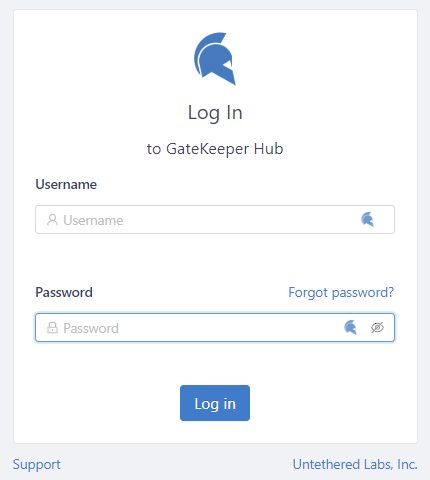
1) Login to your GateKeeper Hub using your GateKeeper Hub admin credentials.
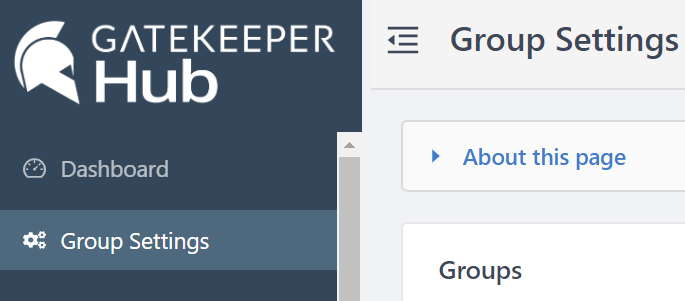
2) Click on the Group Settings tab on the left side.
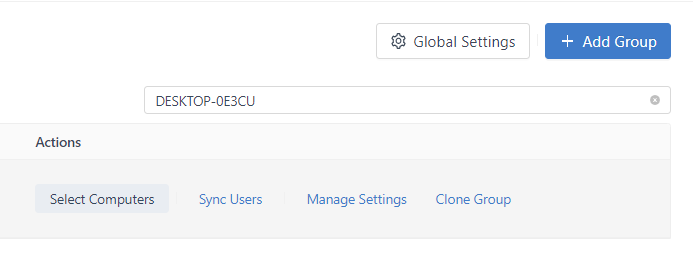
3) In the search field, enter the computer name to find the Group name with the computer you want to disable the Quick Return Timeout feature for.
4) To the right of the Group's name, under the Actions column, click Manage Settings.

5) On the side tab, click Unlock Settings.

6) Using the drop-down menu, change the Quick Return Timeout to Set on Hub.

7) In the time field, set the time value to 0 - this will mean there is no quick return timeout.

8) At the bottom of the side tab, click Save Changes.

9) Click the X in the right-hand upper corner to close the side window.

You're done! If you open the GateKeeper Enterprise Client application, the Quick Return Timeout setting will be grayed out and set to 0.

For more questions on software for proximity authentication, please read more at www.gkaccess.com or reach out at info@gkaccess.com or (240) 547-5446.
-------------
Change group settings; GateKeeper computer settings change; Edit settings; Change lock mode; Change lock method in GateKeeper; New group computer settings; Change computer settings; Change unlock settings; Change lock settings; Computer lock setting change; Edit settings in groups; Edit group settings in gatekeeper; Edit computer settings in gatekeeper hub; How do I use the Hub to manage all the options on the client-side?; let employees change settings; end user settings changing; Can you disable the Quick Return Timeout feature through the Hub?; Can you disable Quick Return Timeout from the Hub?; disabling quick return; How to disable the Quick Return Timeout feature through the Hub.; hot return; login leash; logout leash; How to disable Quick Return Timeout feature from the Hub.;
Comments
0 comments
Please sign in to leave a comment.