
How to configure Authentication Methods for specific groups.
1. Log in to the GateKeeper Hub.

2. Click "Groups & Settings".

3. Click "Global Settings" from the top right side.

4. Click the drop-down menu on "GLOBAL AUTHENTICATION METHOD" then select "Set on Individual Groups".
After that, click "Save Changes" at the bottom.

5. Now, find the group that you want to change the Authentication method for.
Click "Settings", then click "Update Settings".

6. Click "ADVANCED SETTINGS".

7. Click the drop-down menu from "DEFAULT AUTHENTICATOR FOR LOGIN", then select the authenticator.
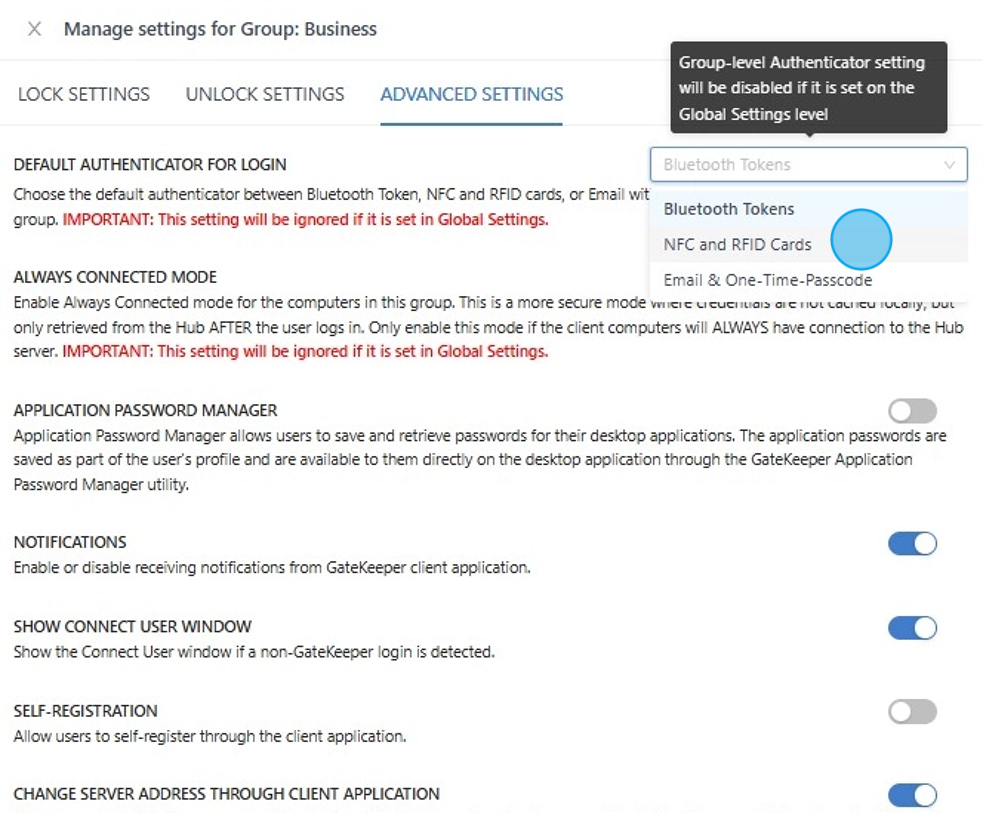
8. After that, click "Save Changes" at the bottom.
You're all set!
The update will take effect in approximately 30–60 seconds, and any computer in this group will update its login options based on the settings you just configured.

For any additional questions or concerns regarding faster 2FA, proximity settings, computer locking, password management, or compliance, please contact GateKeeper Enterprise support using the Support Ticket form on https://gkaccess.com/support/ or email support@gkaccess.com.
Comments
0 comments
Article is closed for comments.