
How to add a new Kiosk Password.
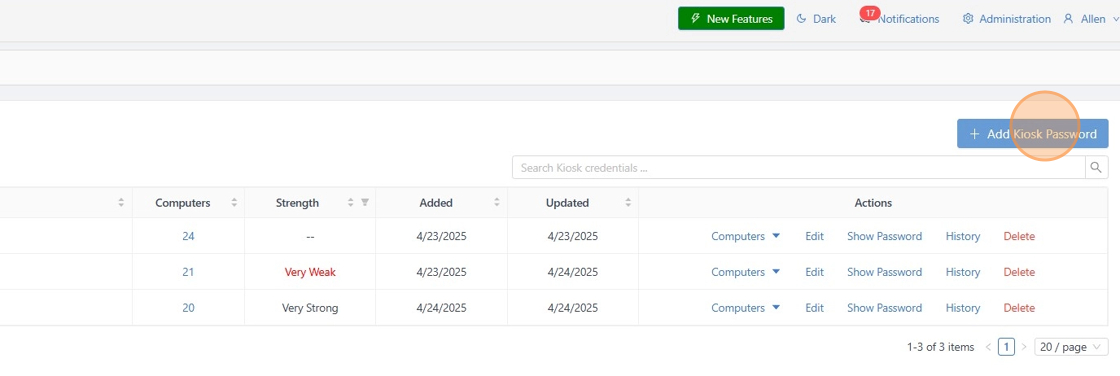
1. Log in to the GateKeeper Hub, then click the drop-down menu"Computer Management", click "Kiosk Passwords" from the left menu.

2. Click the "+ Add Kiosk Password" button on the right side.
3. Once the "Add New Kiosk Password" tab opens, fill out the information:
- Name: This is a name for the Kiosk credentials.
-
Login Type: Domain / Local\
- Please select Domain if this shared account is a domain account.
- Please select Local if this shared account is a local account; you don't have to fill out the Domain area.
- Username: Type the shared account's username. For example, sharedaccount1
- Password: Type the shared account's password.
- After filling out all that information, click "Next" at the bottom.

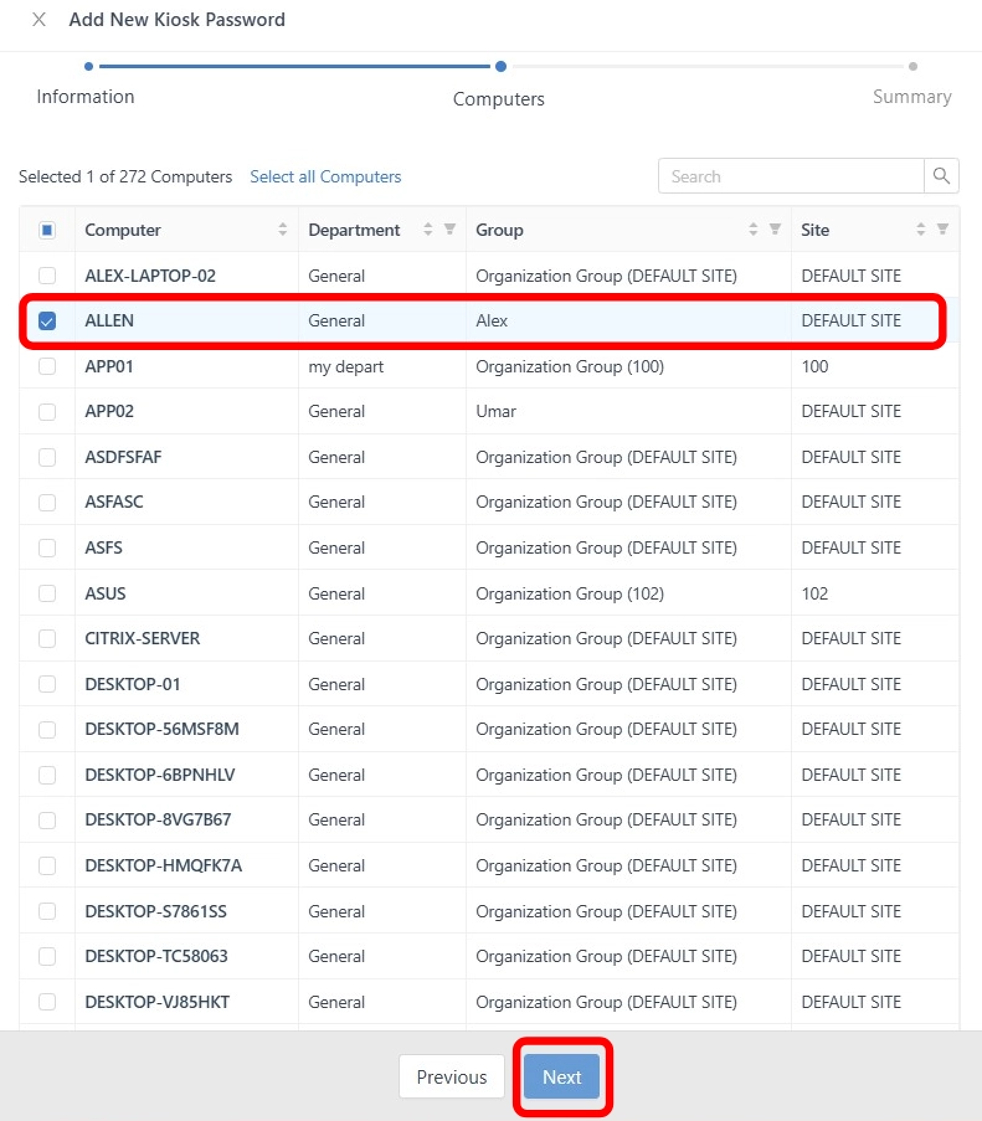
4. On the next screen, select the computers you want to assign this Kiosk credential to.
Once all computers are selected, click 'Next'.
5. You are now at the Summary stage. Please review all information carefully. If anything is incorrect, click 'Previous' to make changes. If everything is correct, click 'Save Kiosk Password'.

6. Finally, a confirmation prompt will appear. Click 'Yes, Save'.

For any additional questions or concerns regarding proximity settings, computer locking, credential management, or compliance, please contact GateKeeper Enterprise support using the Support Ticket form on https://gkaccess.com/support/ or email support@gkaccess.com.
Comments
0 comments
Article is closed for comments.