
How to upload Computers via CSV File.
1. Log in to the GateKeeper Hub.

2. Click "Computer Management," then click "GateKeeper Computers".

3. Click "Add New Computers".

4. Click "Add from file".
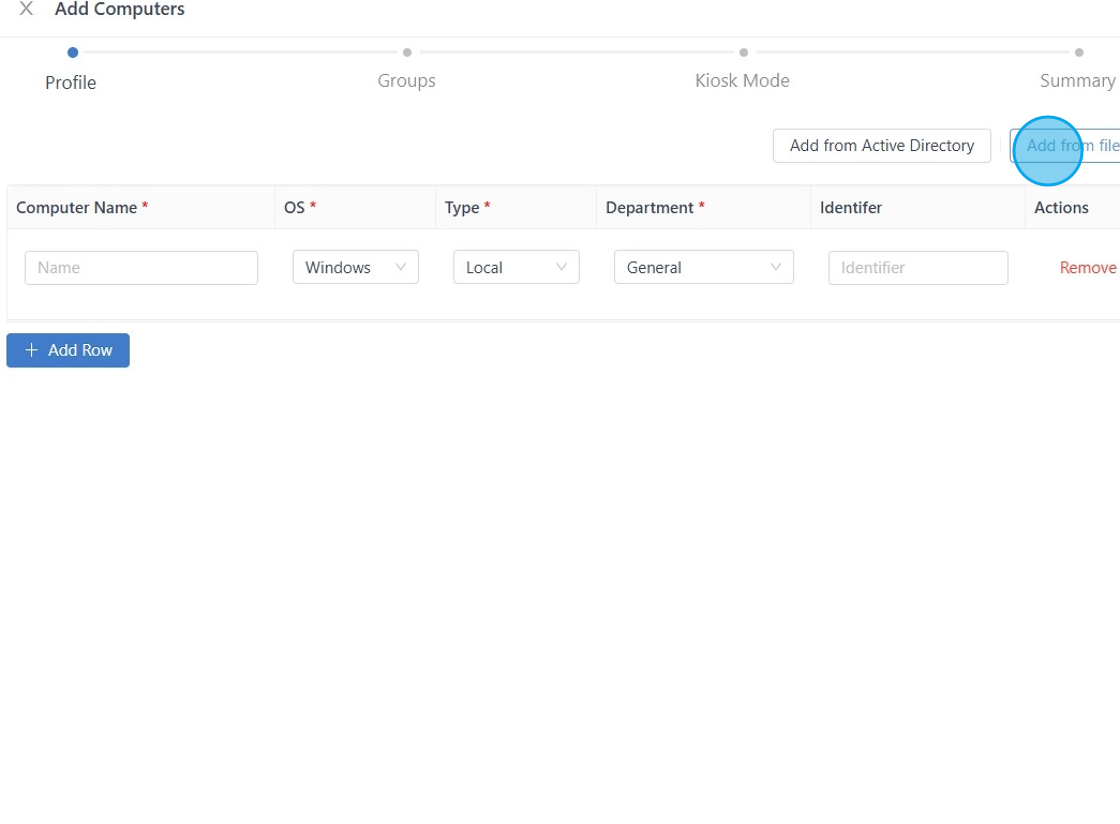
5. Click "Download CSV template".

6. Once the download is complete, open the template.

7. Fill out the information and save it.
Required fields:
- Name: Enter the computer name
- Type: Select either Local or Remote only
- Operating System: Windows only
- Department: General (or create your own)
- Kiosk Account: Enter the Kiosk account name saved in the GateKeeper Hub.

8. After saving the CSV upload file, return to the GateKeeper Hub and upload it.

9. If the Kiosk account doesn’t exist in the Hub, you will receive this error message.

10. Make sure you enter the correct information, then click 'Next'.

11. Make sure the computer is in the correct group, then click 'Next'.

12. Make sure the Kiosk Account information is correct, then click 'Next'.

13. At the Summary stage, please double-check that all the information is correct, then click 'Save Computers'. You're done!

For any additional questions or concerns regarding faster 2FA, proximity settings, computer locking, password management, or compliance, please contact GateKeeper Enterprise support using the Support Ticket form on https://gkaccess.com/support/ or email support@gkaccess.com.
Comments
0 comments
Article is closed for comments.