
How to Assign a Saved Kiosk Credential to a Computer.
1. Log in to the GateKeeper Hub, then click the drop-down menu"Computer Management", click "Kiosk Passwords" from the left menu.

2. Use the search bar to search the computer, and click "Kiosk" under the "Actions" column.

3. Once the Manage Computer tab opens, click 'Select' under the 'Actions' column.

4. Once you find the Kiosk credential, click "Select" under the "Actions" column.

5. Once it loads to the Manage Computer tab, click "Update Kiosk Mode".

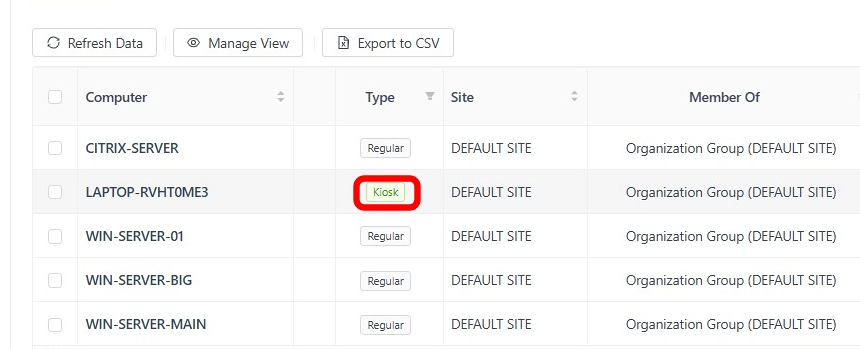
6. Now, the Kiosk credential is applied to the computer, and the computer's type has been changed to "Kiosk".
For any additional questions or concerns regarding faster 2FA, proximity settings, computer locking, password management, or compliance, please contact GateKeeper Enterprise support using the Support Ticket form on https://gkaccess.com/support/ or email support@gkaccess.com.
Comments
0 comments
Article is closed for comments.