
How to Set Up GateKeeper Kiosk Mode with Azure AD Logins.
1. Log in to the GateKeeper Hub.

2. Click "Computers Management", click "Kiosk Passwords".
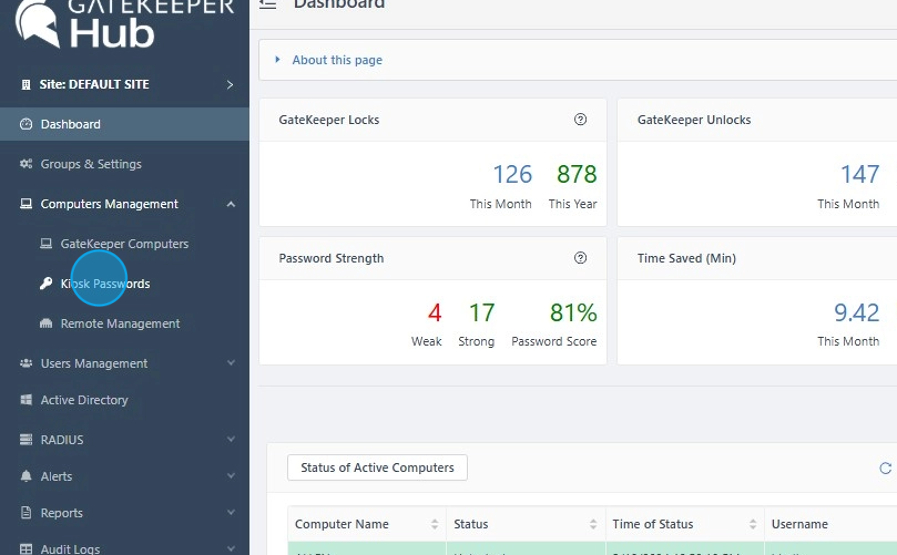
3. Click "Add Kiosk Password".

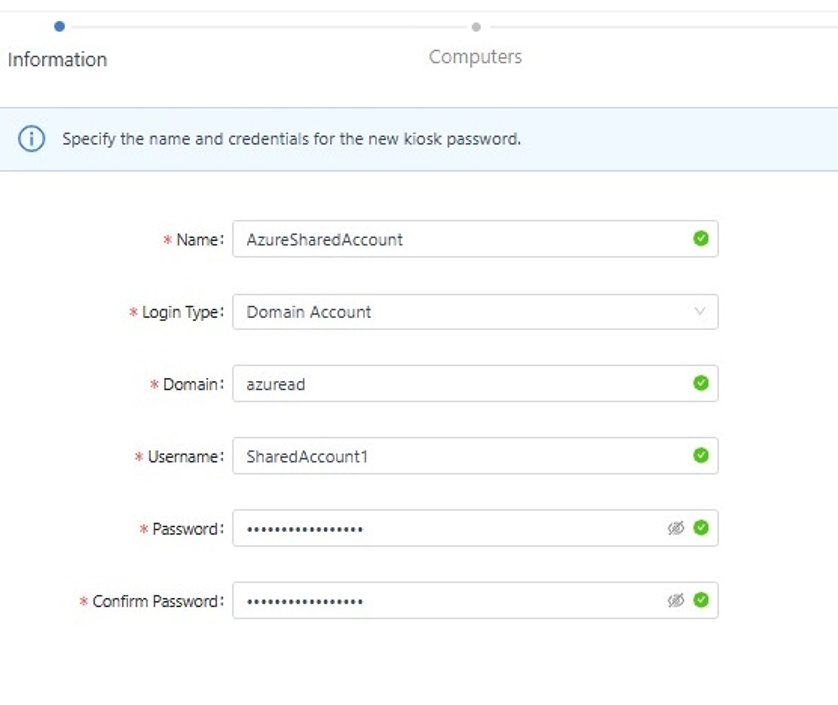
4. Name: Type the Kiosk password name.
- Login type: Select "Domain Account".
- Domain: Type azuread
- Username: Type this Kiosk credential's username.
-
Password: Type this Kiosk credential's password.
Click "Next" at the bottom.
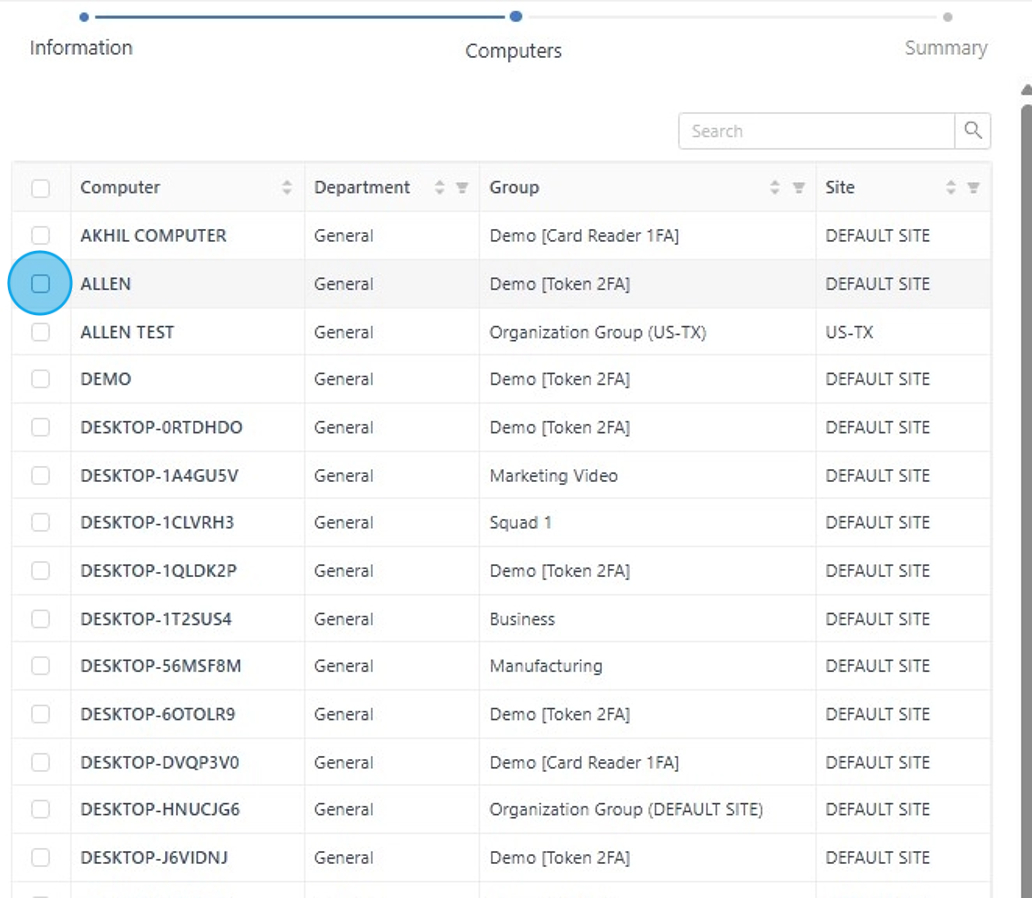
5. Select the checkbox to assign this Kiosk credential to the computer.
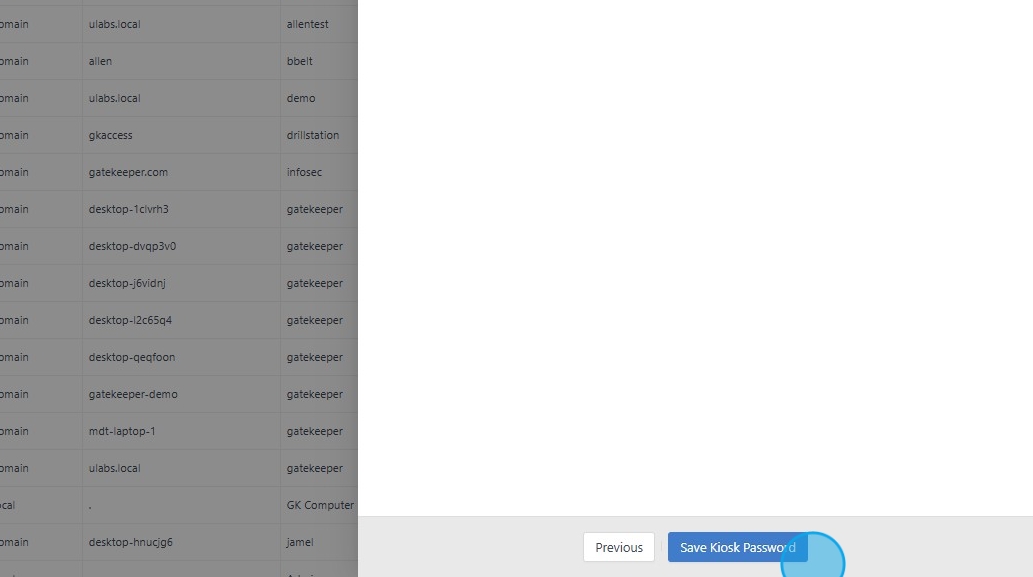
6. Click "Save Kiosk Password".
For any additional questions or concerns regarding faster 2FA, proximity settings, computer locking, password management, or compliance, please contact GateKeeper Enterprise support using the Support Ticket form on https://gkaccess.com/support/ or email support@gkaccess.com.
Comments
0 comments
Article is closed for comments.