
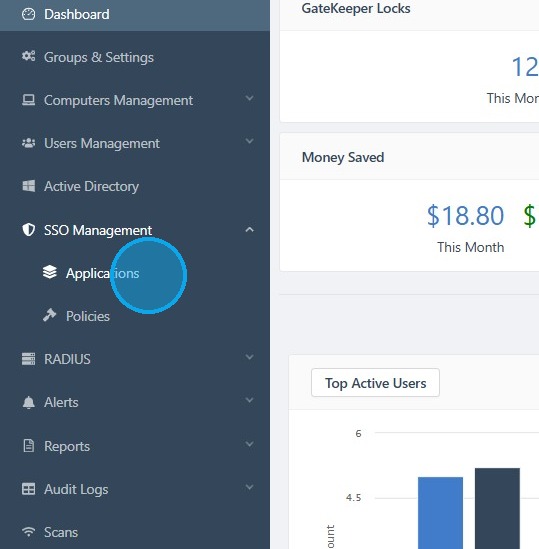
1. Log in to your GateKeeper Hub.
- Click "SSO Management".
- Click "Applications".
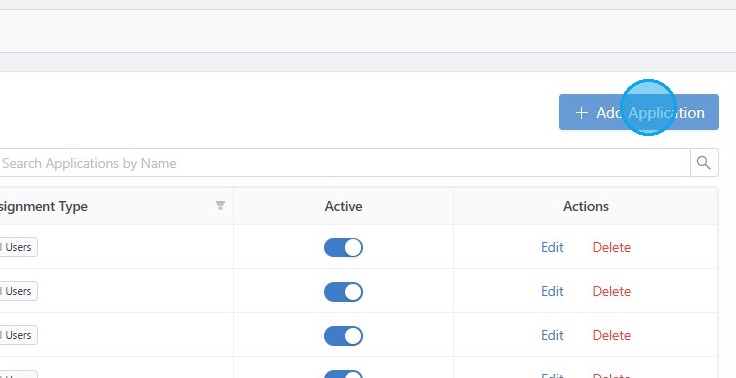
2. Click "+ Add Application".
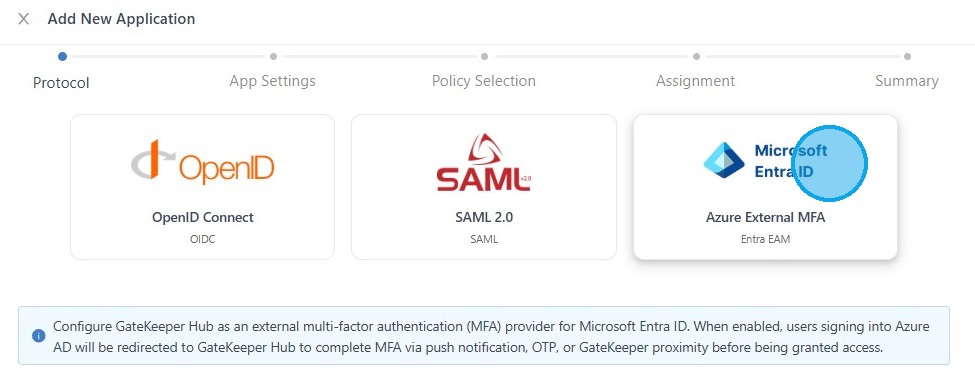
3. Click "Azure External MFA".
- Click "Next".
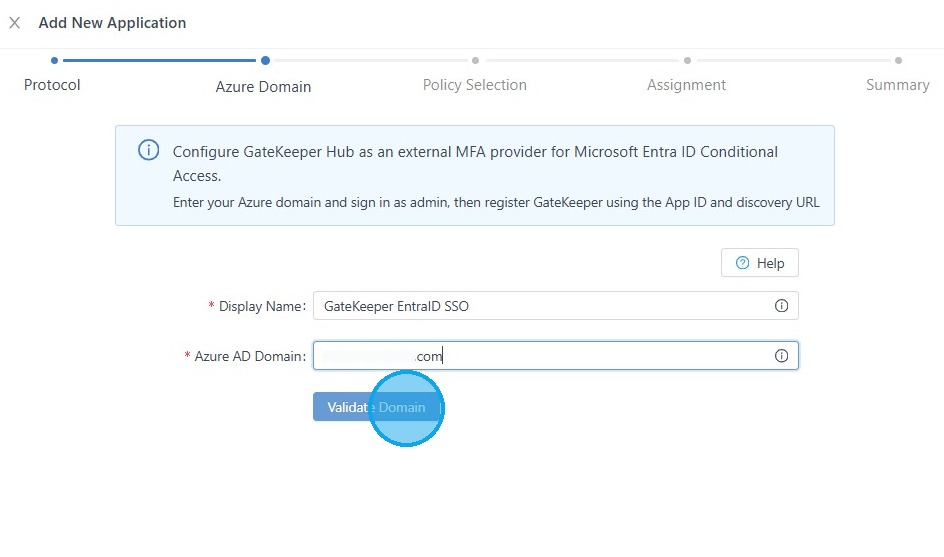
4. Type the "Display Name".
- Type your Azure AD Domain, e.g., company.com
- Click "Validate Domain".
5. Click "Sign in as Admin to Verify".
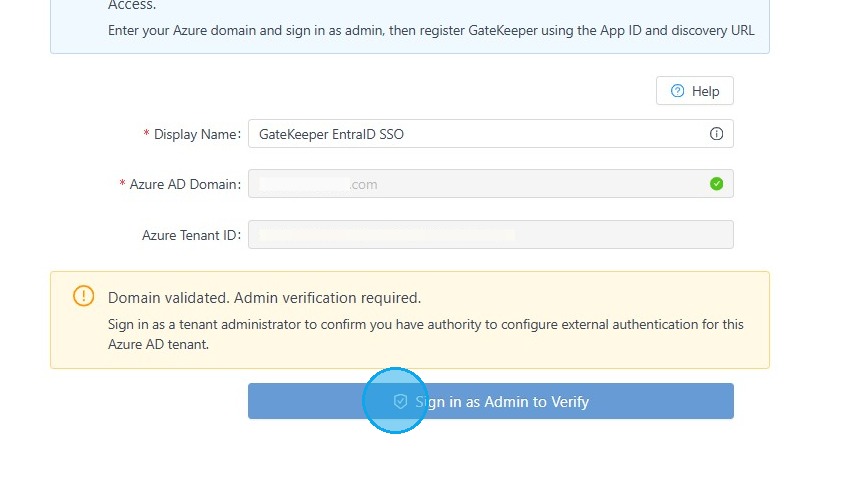
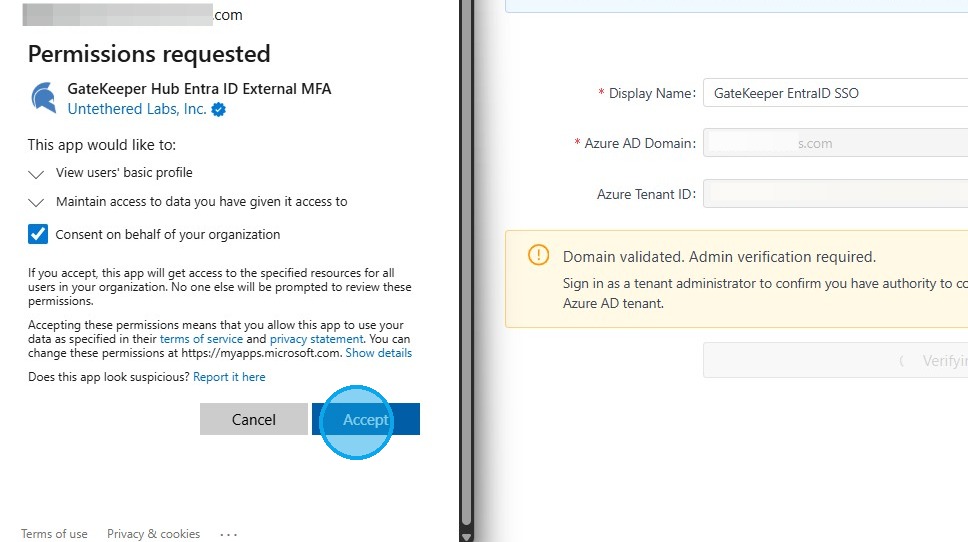
6. It will open a new browser login tap, log in to your Microsoft Entra ID.
- Make sure you check the "Consent on behalf of your organization".
- Click "Accept".
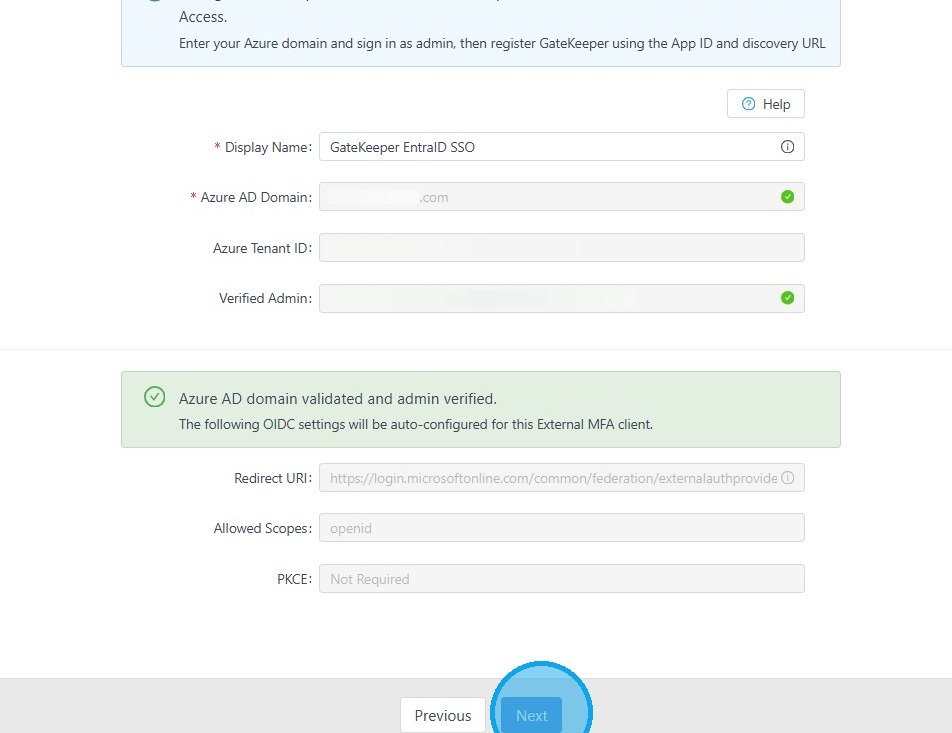
7. After you verify your Azure AD domain and admin account, you will see Admin verified information.
- Click "Next".
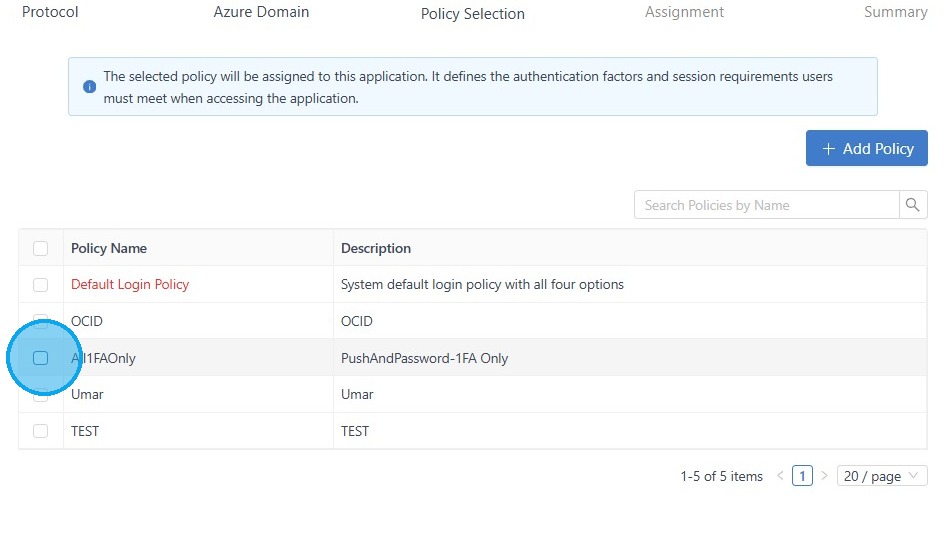
8. Select the policy that you want to use.
- If you didn't make one, select Default Login Policy.
- Or you can create new policy by clicking "+ Add Policy".
- Click "Next".
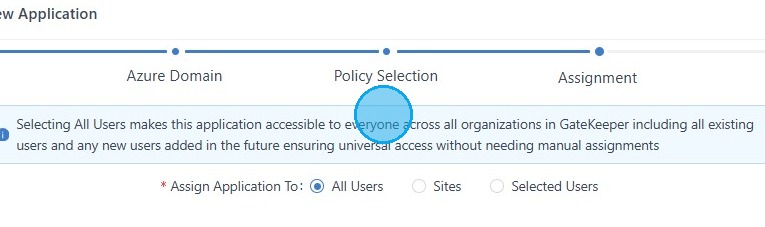
9. Choose the assignment from the following options below:
- All Users - For all the GateKeeper users.
- Sites - Only for specific site users.
- Selected Users - individual user.
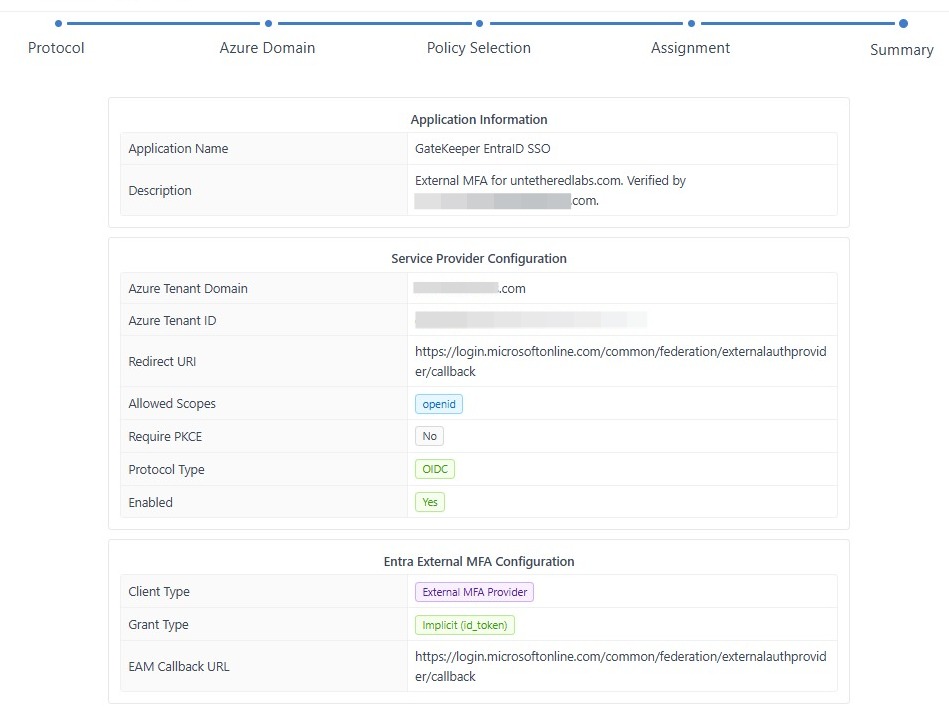
10. Review all the information.
- Click "Save New SSO Application".
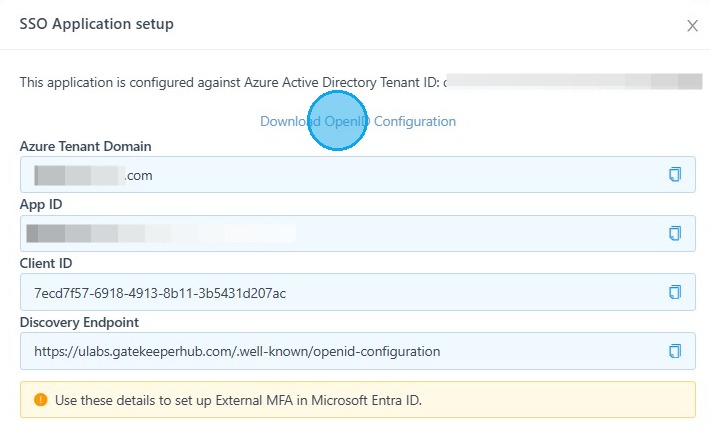
11. Click "Download Configuration".
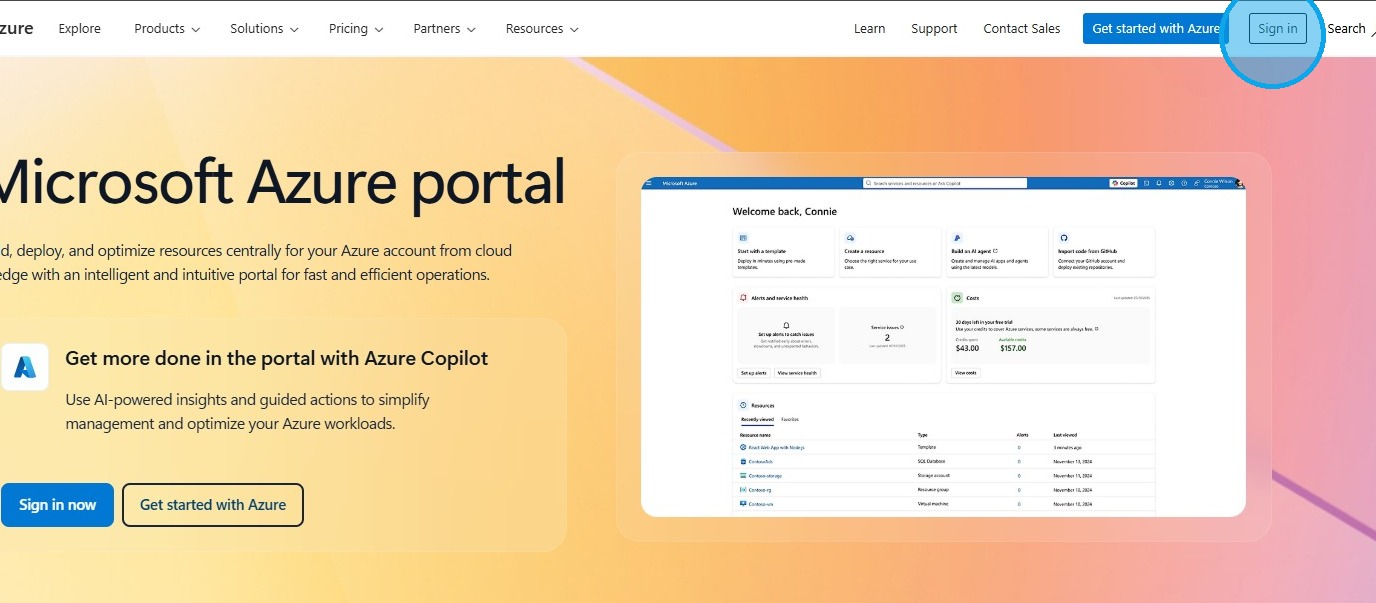
12. Open the Microsoft Azure portal.
- Click "Sign in".
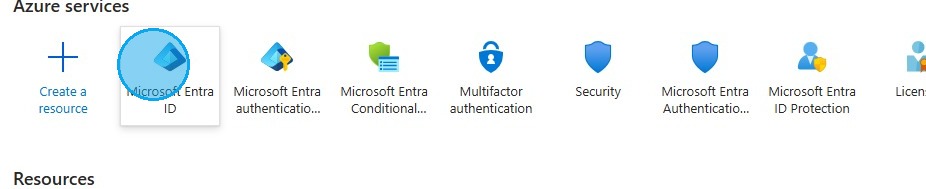
13. Click "Microsoft Entra ID".
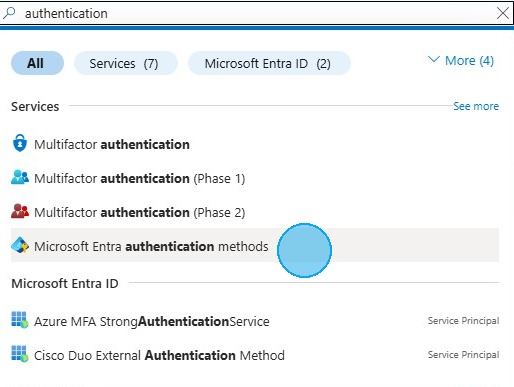
14. Search for "Microsoft Entra authentication methods".
- Click "Microsoft Entra authentication methods".
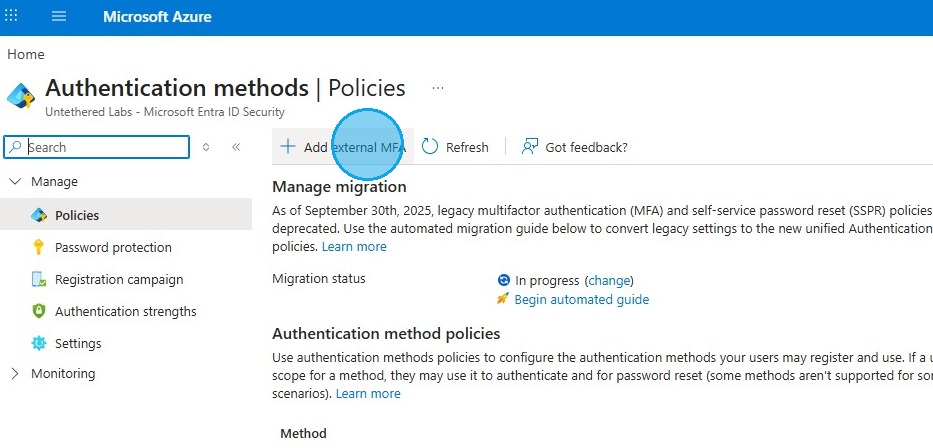
15. Click "Add external MFA".
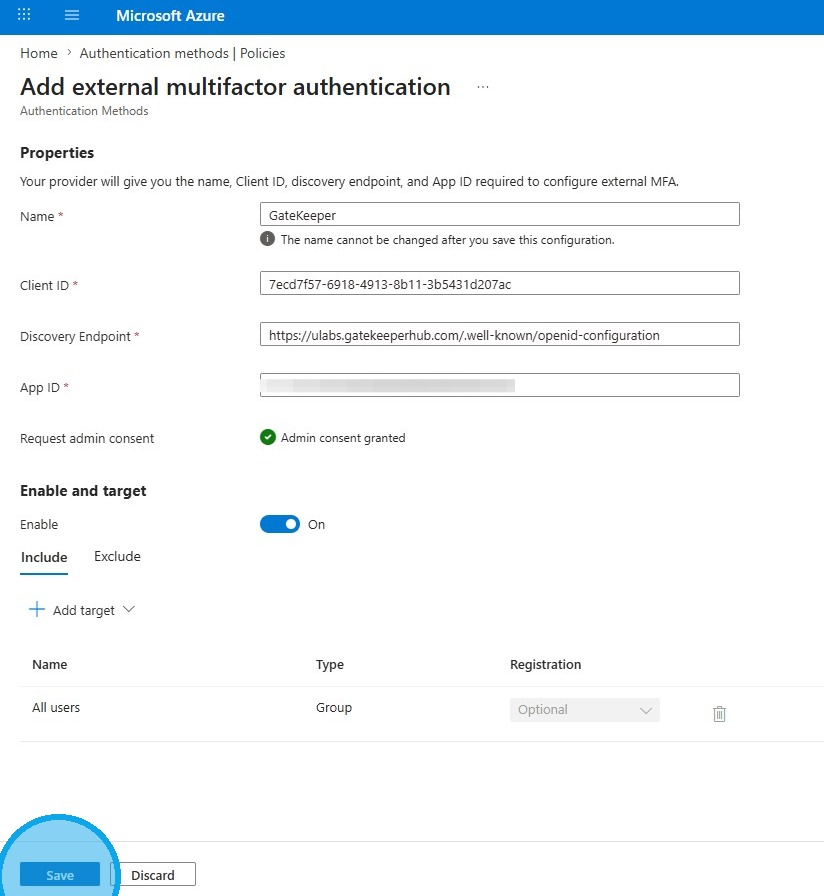
16. Fill in all required information; you can find it in your downloaded file.
- Enable and target, click "ON".
- Click "Save".
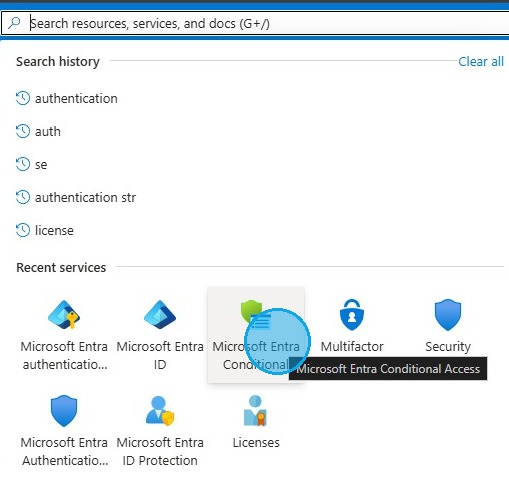
17. Click the search bar at the top and type "Microsoft Entra Conditional Access".
- Click "Microsoft Entra Conditional Access".
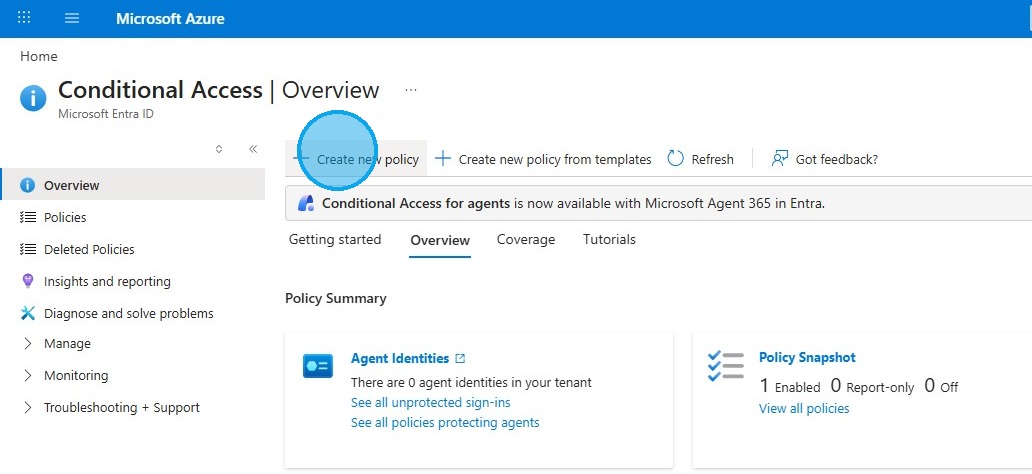
18. Click "Create new policy".
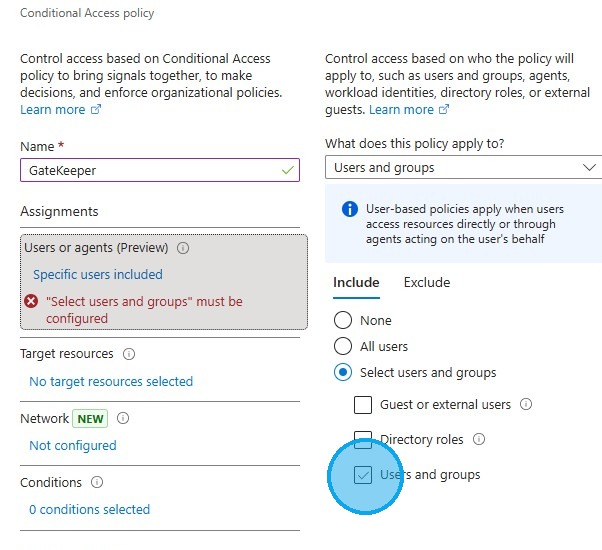
19. Type the "Name".
- Select who would like to be included in this policy.
- Click "Users and groups".
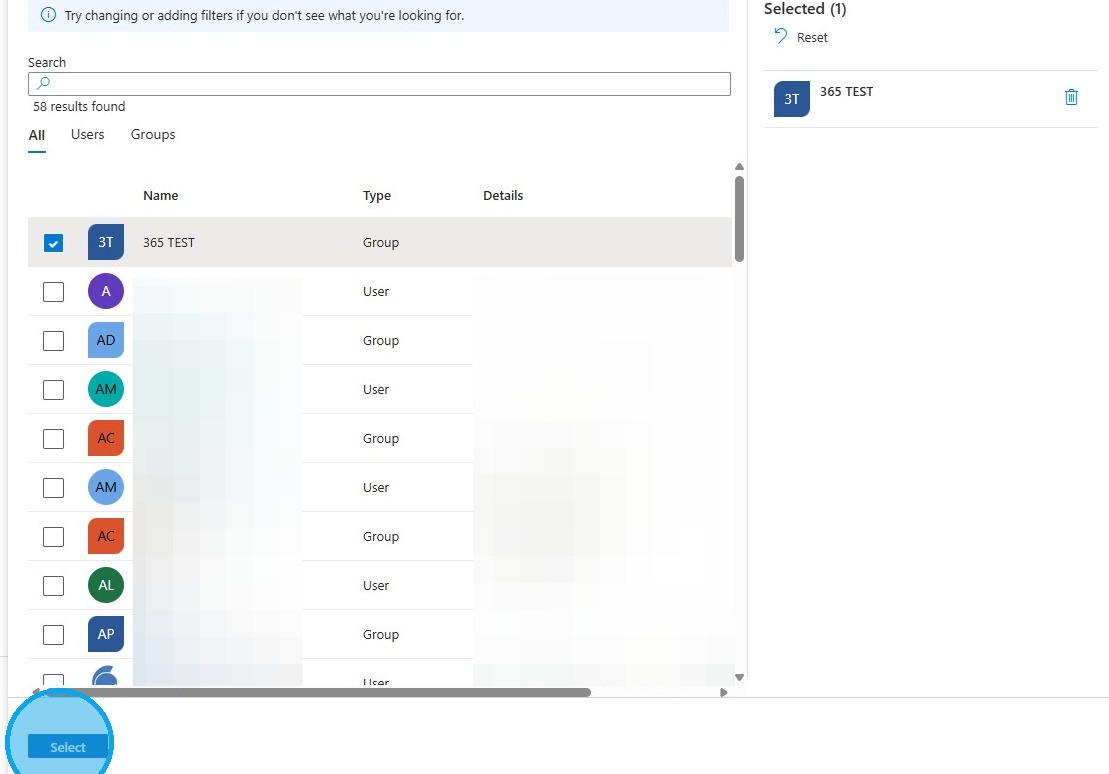
20. Select users and click "Select".
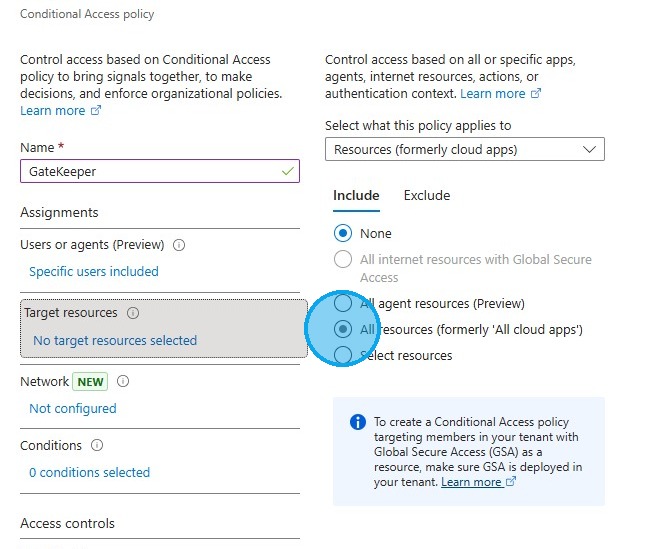
21. Click "Target resources No target resources selected".
- Click "All resources (formerly 'All cloud apps')".
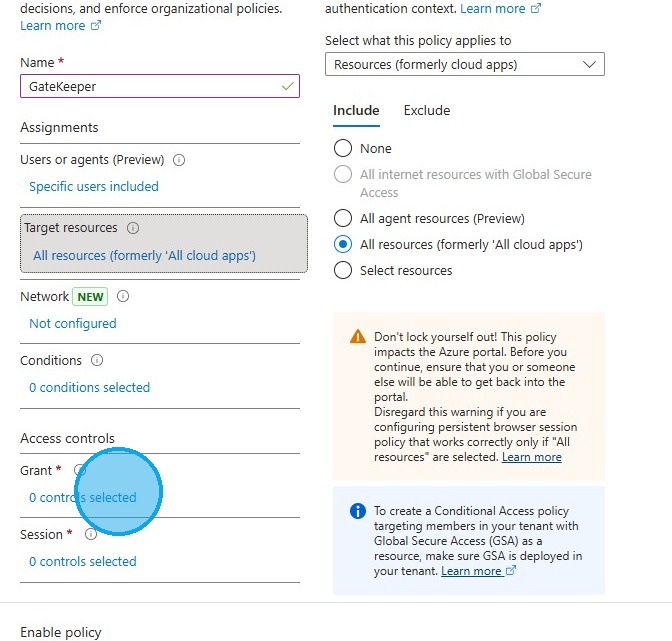
22. Click "Grant required 0 controls selected".
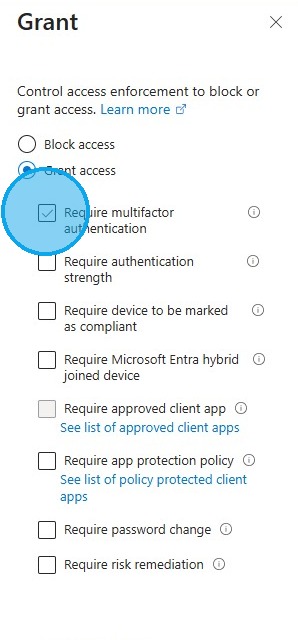
23. Click "Require multifactor authentication".
- Click "Save".
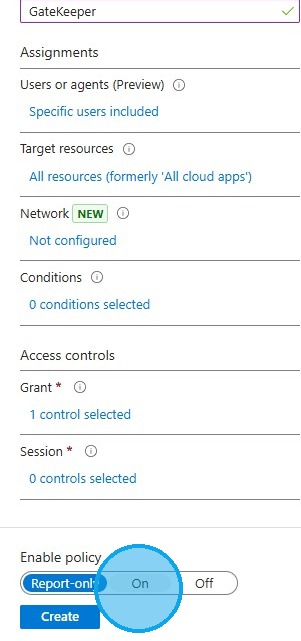
24. Click "Enable Policy: On".
- Click "Create".
25. Open Microsoft 365 and log in.
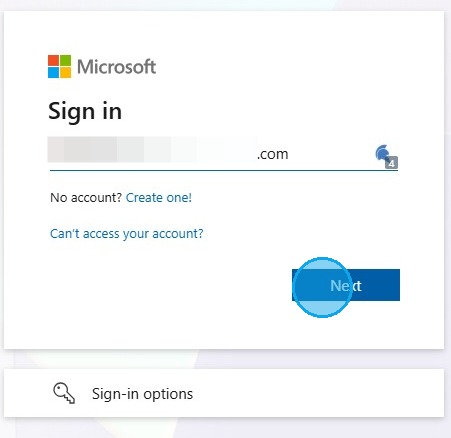
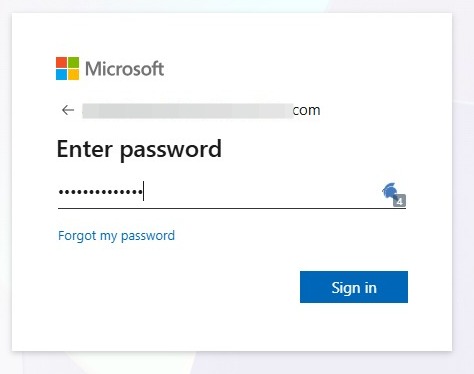
26. Type your Azure AD password.
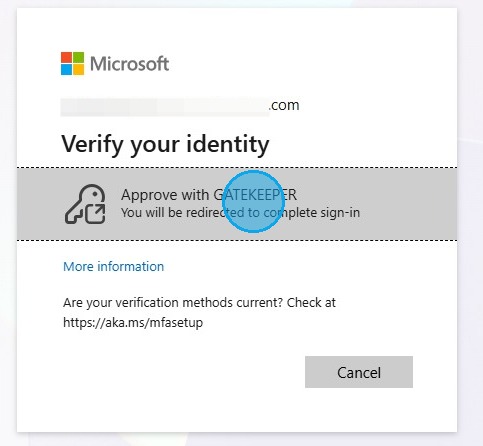
27. Click "Approve with GATEKEEPER . |You will be redirected to complete sign-in.
28. Select the login options.
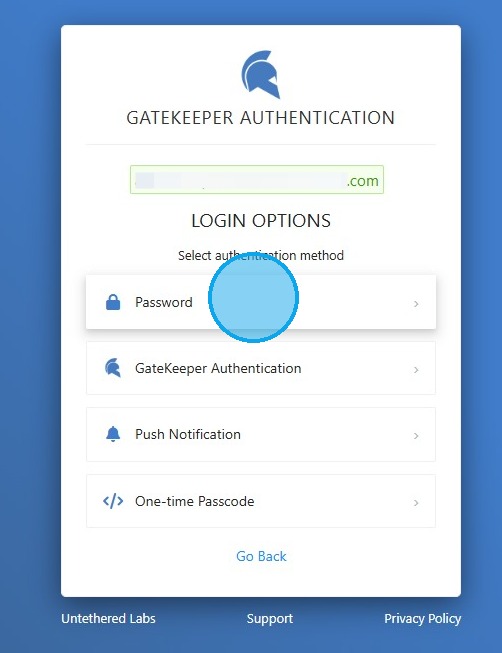
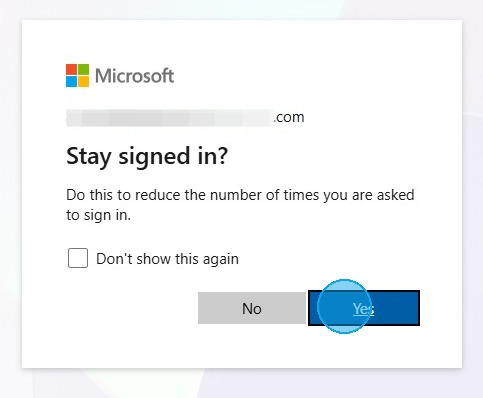
29. After successfully logging in, the user will be redirected back to Office 365 and log in.
For any additional questions or concerns regarding faster 2FA, proximity settings, computer locking, password management, or compliance, please contact GateKeeper Enterprise support using the Support Ticket form on https://gkaccess.com/support/ or email support@gkaccess.com.
Comments
0 comments
Article is closed for comments.