
This guide walks you through the process of setting up Single Sign-On (SSO) for your GateKeeper Hub application. Follow these steps to correctly generate certificates, configure identity provider settings, and finalize your integration for seamless authentication.
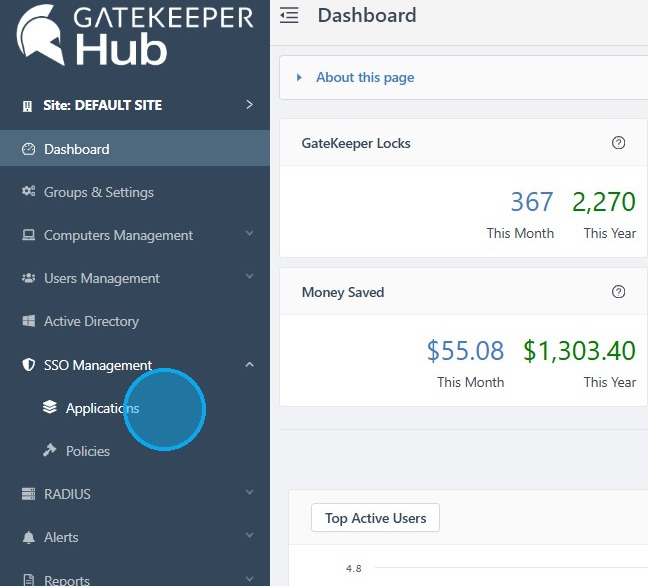
1. Log in to your GateKeeper Hub, click SSO Management, and click Applications.
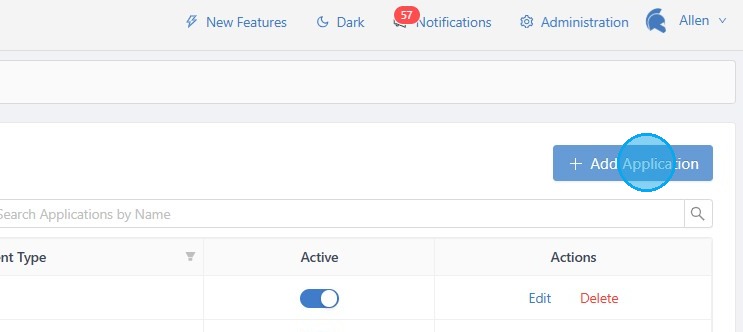
2. Click + Add Application.
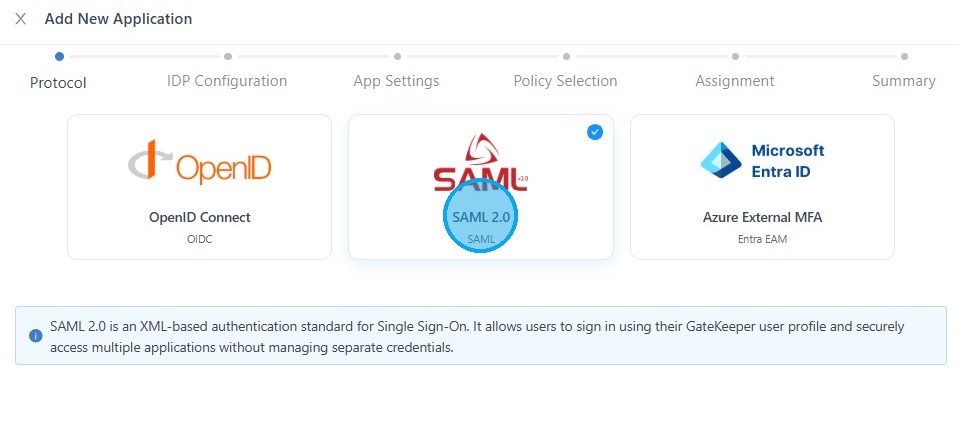
3. Select "SAML 2.0", then click "Next".
4. Click "Download SAML Metadata".
5. Navigate and log in to the Opentext portal, and click Administration > Single Sign-On.
6. In the Configure Identity Provider section, select the method of adding the identity provider metadata:
- Click the browse button.
- Navigate to and select the .xml file that you just downloaded.
- Click Import.
7. Go back to the GateKeeper Hub and fill out all the information.
Use these details to add Opentext to GateKeeper:
- Application Name: Opentext SAML
- Description: Opentext SAML
- Service Provider Entity ID: Entity ID / Issuer value
- Assertion Consumer Service URL: Opentext Homepage value
Click Next
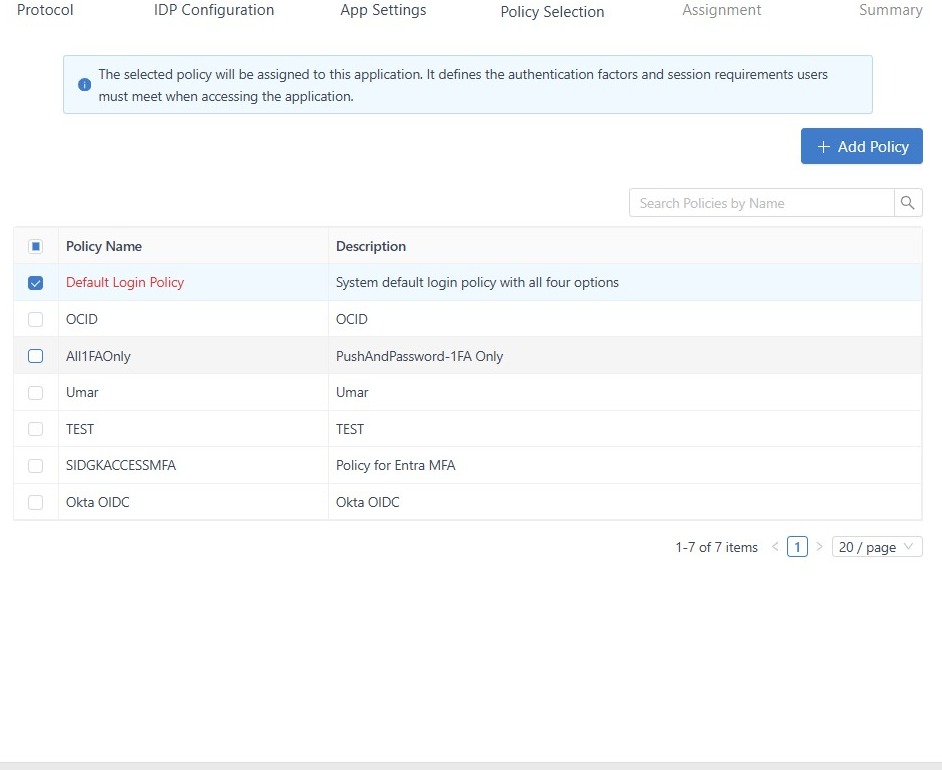
8. Select the Default Login Policy, then click Next.
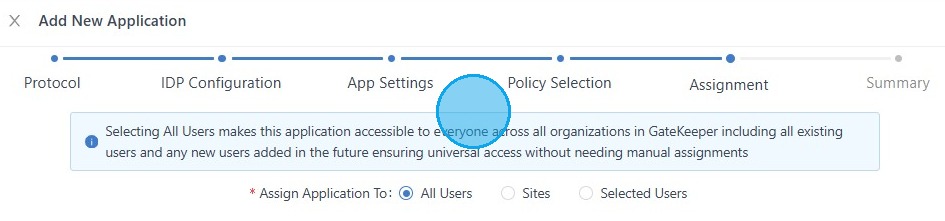
9. Select which group of users will follow this rule, and click Next.
10. Double-check that all the information is correct, and click Save New SSO Application.
For any additional questions or concerns regarding faster 2FA, proximity settings, computer locking, password management, or compliance, please contact GateKeeper Enterprise support using the Support Ticket form on https://gkaccess.com/support/ or email support@gkaccess.com.
Comments
0 comments
Article is closed for comments.